Key Concepts
Before you start clicking around, it’s worth spending five minutes here. Paperclip introduces a handful of ideas that don’t have perfect equivalents in other software — and if you misunderstand them early, the product will seem confusing in ways that are hard to untangle later.
This guide explains seven concepts that underpin everything in Paperclip. Analogies come first; technical detail follows.
Company
Section titled “Company”In one sentence: A Company is a self-contained AI organisation with a single goal, a team of agents, a task board, and a budget.
The analogy: Think of a Company the way you’d think of a Notion workspace — everything related to a project lives inside it. The difference is that a Paperclip Company isn’t just a place to store information. It’s an active organisation that plans and executes work autonomously.
Why it exists: Paperclip can run multiple, separate AI organisations in parallel. The Company boundary keeps their goals, agents, tasks, and budgets isolated from each other — so you could run a “Content Marketing” company and a “Software Development” company side-by-side without them interfering.
What you do with it:
- Create a Company with a name and a goal
- Set a monthly budget ceiling for the whole organisation
- Monitor all work and costs from the Company’s dashboard
Every single thing in Paperclip — every agent, every task, every dollar spent — belongs to a Company.
In one sentence: An Agent is an AI employee — a configured role with a specific job, a manager, and a monthly budget.
The analogy: Hiring an agent is like engaging a contractor. You don’t just plug in “an AI” — you define the job title, describe what they’re responsible for, give them the tools they need, tell them who they report to, and set their monthly rate. The difference is that the contractor here is powered by Claude, Codex, or another AI system.
Why it exists: Without agents, Paperclip has no one to do the work. The agent layer is what turns a goal into action. Each agent has a clearly scoped role so that multiple agents can collaborate without confusion about who’s responsible for what.
What you do with it:
- Hire your first agent (the CEO) from onboarding or from the Agents page
- Configure what AI system powers it, where it runs, and what its budget is
- Watch its status and run history to understand what it’s doing
Agents are organised in a strict hierarchy. Every agent reports to exactly one manager. The CEO is the only agent with no manager — it reports directly to you, the board.
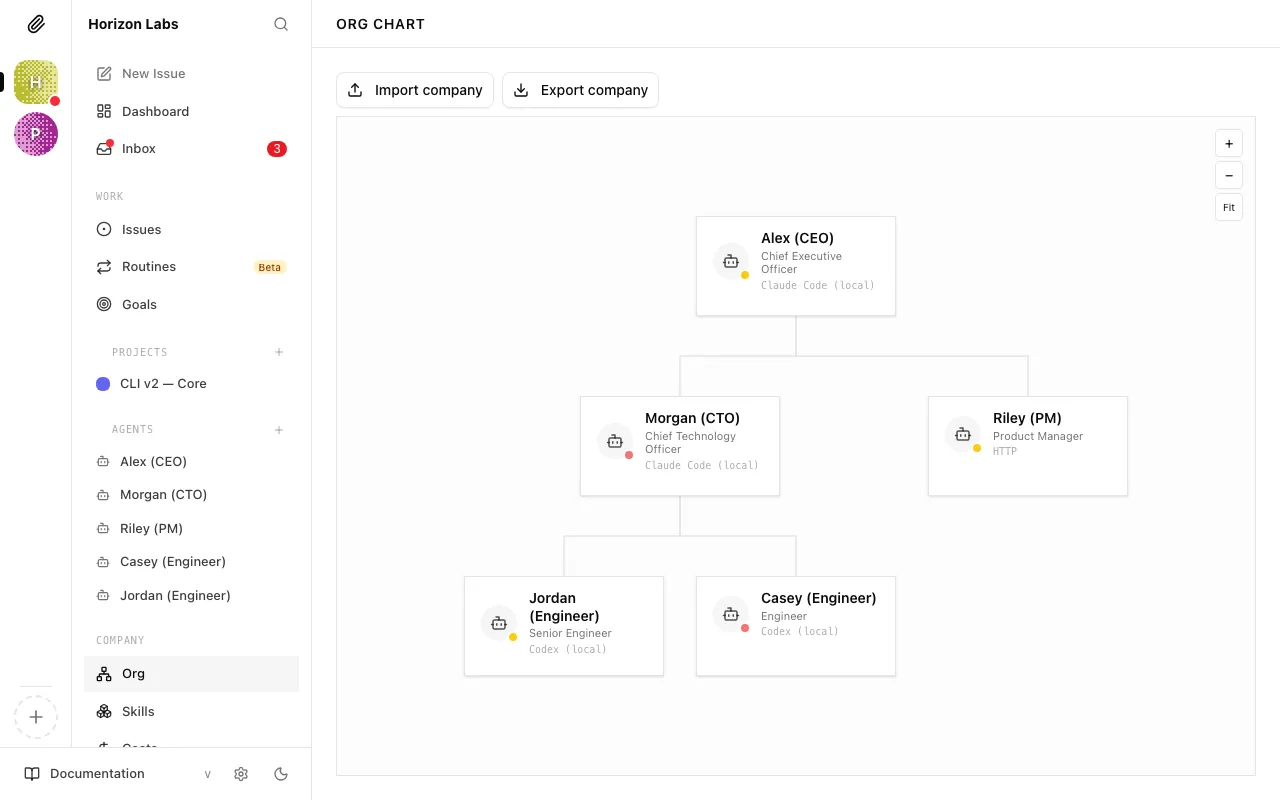
Note: The CEO agent is always the first agent you create. It’s the entry point — once the CEO is running, it creates tasks and can request to hire its own reports.
In one sentence: A Task is a unit of work — like a ticket on a project board, except it’s assigned to an AI agent, not a human.
The analogy: If you’ve used Jira, Linear, or Trello, tasks will feel familiar. Each task has a title, a description, a priority, a status, and an assignee. The difference is that when you assign a task to an agent, the agent picks it up, works on it autonomously, and posts updates in the task’s comment thread as it goes.
Why it exists: Breaking work into tasks makes autonomous execution traceable and controllable. Rather than asking an AI to “do everything”, you — and the CEO agent — break the company goal into discrete tasks that can be tracked, prioritised, and reassigned.
What you do with it:
- Review tasks created by the CEO in the Issues page or Inbox
- Create tasks manually when you want to direct work yourself
- Check task status and comment threads to follow progress
Tasks move through a defined lifecycle:
backlog → todo → in_progress → in_review → doneThey can also be marked blocked if an agent is waiting on something, or cancelled if the work is no longer needed.
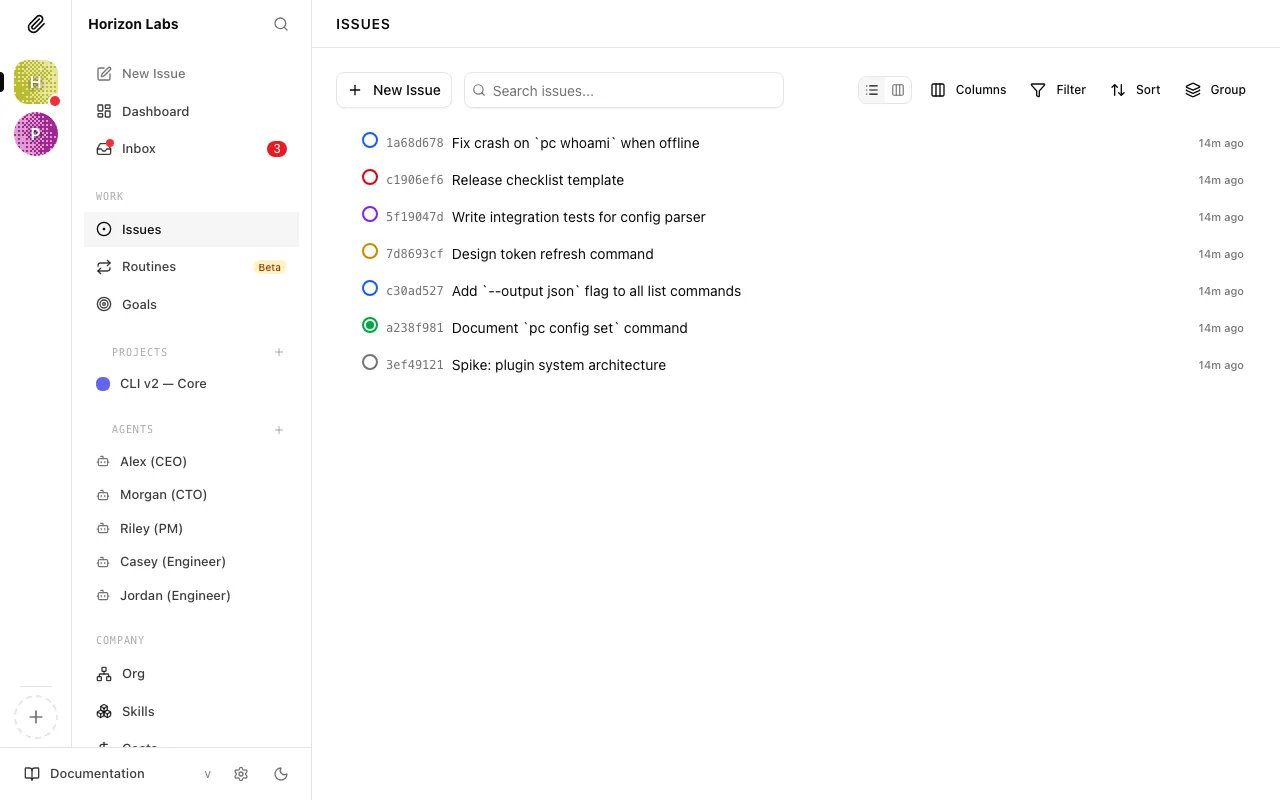
Tip: When an agent picks up a task, it “checks it out” — claiming exclusive ownership. This prevents two agents from working on the same thing simultaneously.
Heartbeat
Section titled “Heartbeat”In one sentence: A Heartbeat is a scheduled execution window — the moment when an agent wakes up, checks its inbox, and does work.
The analogy: Think of a heartbeat like setting a recurring alarm for an employee. The alarm goes off; they check their messages, pick up where they left off, do a chunk of work, and log off until the next alarm. Agents don’t run continuously — they run in heartbeats.
Why it exists: Running an AI agent continuously would be expensive and unmanageable. Heartbeats keep execution predictable and costs trackable. You know roughly when an agent will work, how long it runs, and what it did during each window.
What you do with it:
- Configure how often each agent’s heartbeat fires (e.g. every hour)
- Use Run Heartbeat on the agent detail page when you want to trigger one manually
- Use comments and assignments to wake agents on demand when their run policy allows it
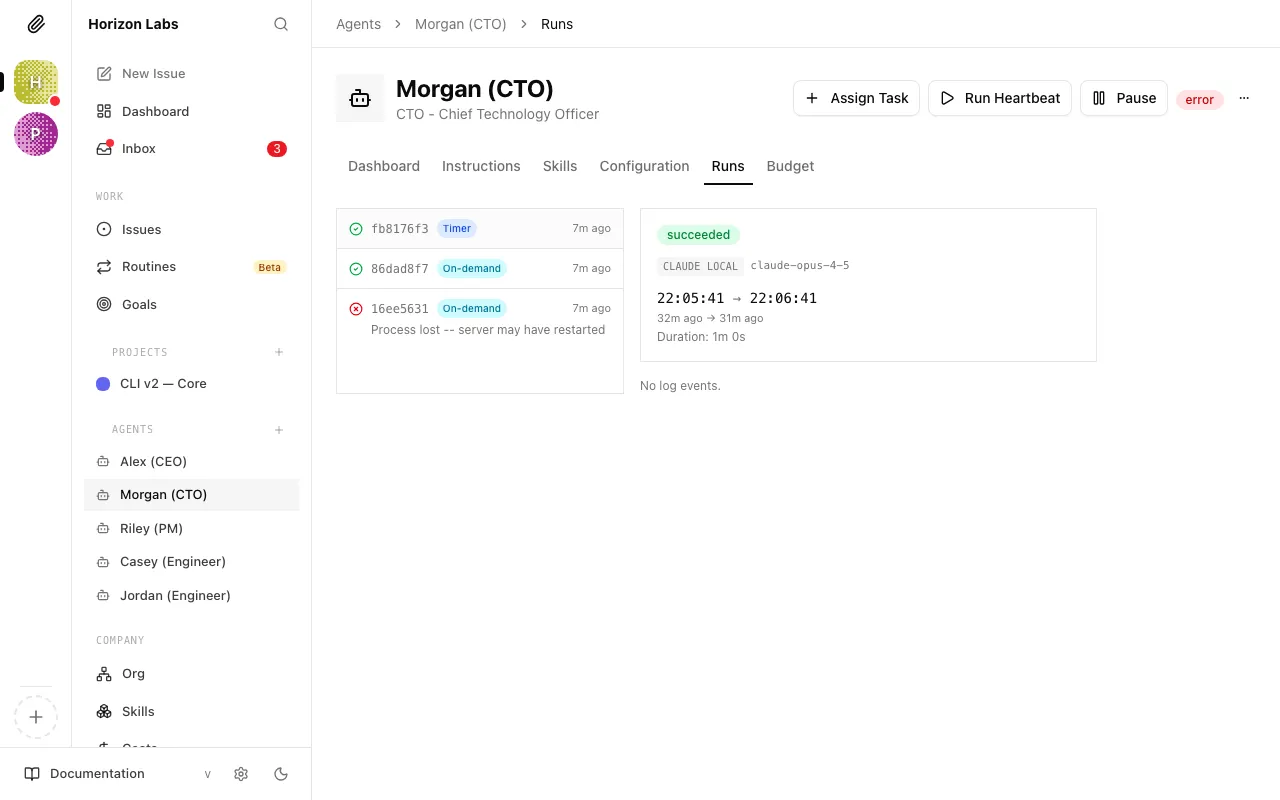
Each heartbeat is logged with a full transcript so you can read exactly what the agent did and why.
A heartbeat can be triggered by:
- Schedule — a timer fires at your configured interval
- Task assignment — a new task is assigned to the agent
- Comment mention — the agent is @-mentioned in a task comment
- Manual invoke — you click Run Heartbeat on the agent detail page
- Approval resolution — a pending approval the agent submitted is approved or rejected
Adapter
Section titled “Adapter”In one sentence: An Adapter is the connection between Paperclip and the AI system that actually runs your agent.
The analogy: Think of it like a power adaptor for international travel. The appliance (your agent) is the same regardless of where you plug it in, but the plug (the adapter) has to match the socket (the AI runtime). Claude Code needs one kind of plug; Codex needs another; a custom webhook needs a third.
Why it exists: Paperclip itself is not the AI — it’s the orchestration layer above the AI. The adapter system lets Paperclip work with any AI runtime without being locked into one provider. You can run some agents on Claude and others on Codex, or connect entirely custom systems via the HTTP adapter.
What you do with it:
- Choose an adapter type when you hire an agent (Claude Local is the most common starting point)
- Configure adapter-specific settings: which model to use, where files should be written, and which environment variables or secrets the agent needs
- Use the “Test Environment” button to verify the adapter is working before enabling the agent
Available adapter types:
| Adapter | What it does |
|---|---|
claude_local | Runs a Claude Code agent on your local machine |
codex_local | Runs a Codex agent on your local machine |
gemini_local | Runs a Gemini CLI agent locally |
opencode_local | Runs an OpenCode agent locally |
cursor | Runs a Cursor agent locally |
pi_local | Runs a Pi agent locally |
hermes_local | Runs a Hermes Agent locally with persistent memory and 30+ tools |
A few additional adapter types (openclaw_gateway, process, http) exist in the runtime but are currently marked “Coming soon” in the agent-config dropdown. See Adapters Overview for the full list.
For most people getting started, claude_local is the right choice.
Budget
Section titled “Budget”In one sentence: A Budget is a monthly spending cap — a dollar limit that Paperclip enforces automatically so your agents never overspend.
The analogy: Think of it like setting a monthly limit on a company credit card. Agents can spend freely up to the limit. When they approach it, they get a warning. When they hit it, the card is declined and the agent pauses automatically.
Why it exists: Every API call an agent makes costs real money. Without a budget, a misconfigured agent could run a large and expensive job, or a bug could cause an agent to loop indefinitely. Budgets are the safety net that makes autonomous AI practical.
What you do with it:
- Set a company-level budget (the ceiling for the whole organisation)
- Set per-agent budgets (each agent has its own limit within the company ceiling)
- Monitor spend on the dashboard’s cost panel
- Increase or decrease budgets at any time from the agent’s settings
Budget behaviour:
- At 80% utilisation: Paperclip shows a warning so you can intervene before the hard stop
- At 100% utilisation: the agent is automatically paused and no more heartbeats fire
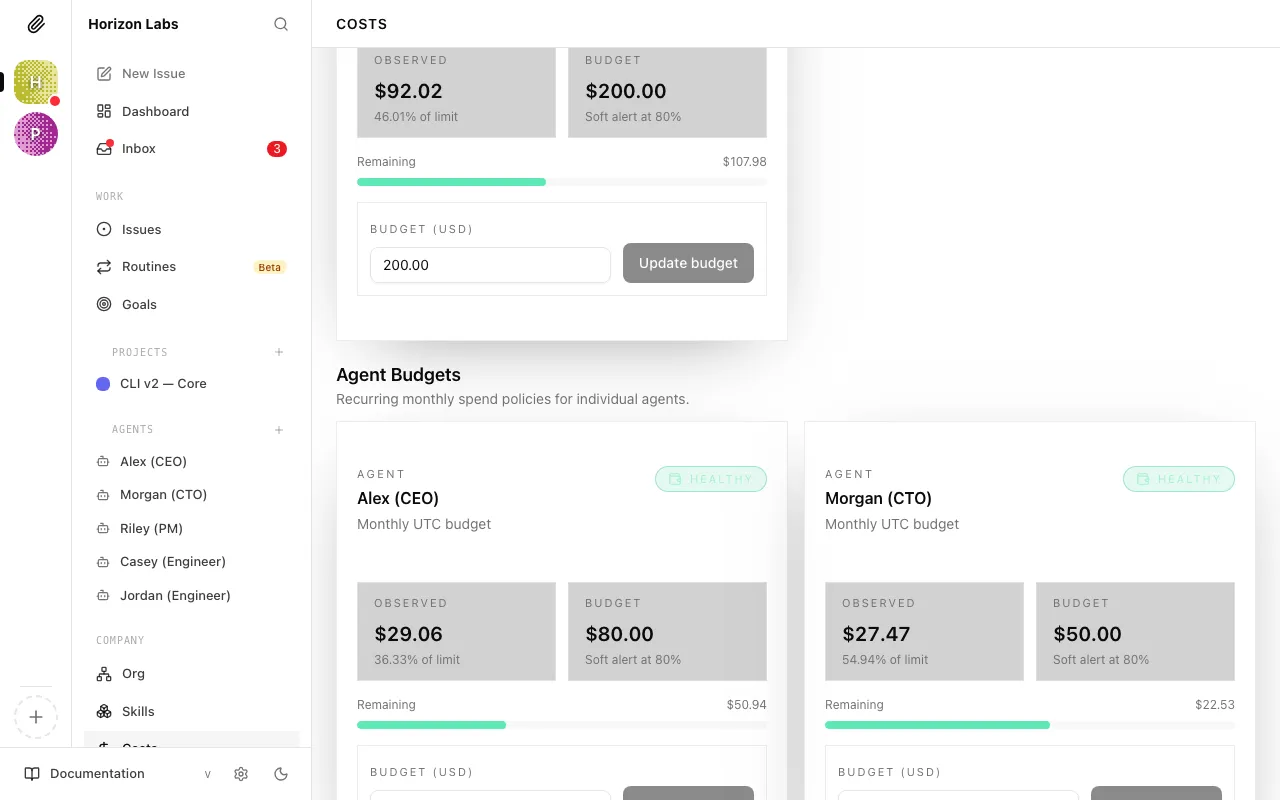
Warning: The company budget and the per-agent budgets are separate. An agent can be paused by its own budget limit even if the company has remaining budget. Set both carefully.
Approval
Section titled “Approval”In one sentence: An Approval is a governance gate — a checkpoint where Paperclip pauses and asks you to sign off before an important action proceeds.
The analogy: Think of it like a purchase order process at a company. Below a certain threshold, employees can spend freely. Above it, they need a manager’s sign-off before the purchase goes through. Approvals are Paperclip’s equivalent of that sign-off process — but for AI agents.
Why it exists: Autonomous agents are powerful, but you shouldn’t cede all control. Approvals ensure you remain the decision-maker on the things that matter: the company’s strategic direction, and who gets hired.
What you do with it:
- Review pending approvals in the Approvals queue
- Approve to let the action proceed
- Reject to block it outright
- Request a revision — the agent will modify its proposal and resubmit
The first two approval types most beginners encounter are:
- Strategy approval — after its first heartbeat, the CEO submits its strategic plan for your review. Nothing proceeds until you approve this. You can request as many revisions as you need.
- Hire agent approval — when the CEO (or another manager) wants to bring on a new agent, it submits the proposed configuration for your review. You see exactly what the agent will do, its budget, and its role before agreeing.
Paperclip can also surface budget override approvals when a hard stop is hit, and other board-level approval requests in more advanced flows.
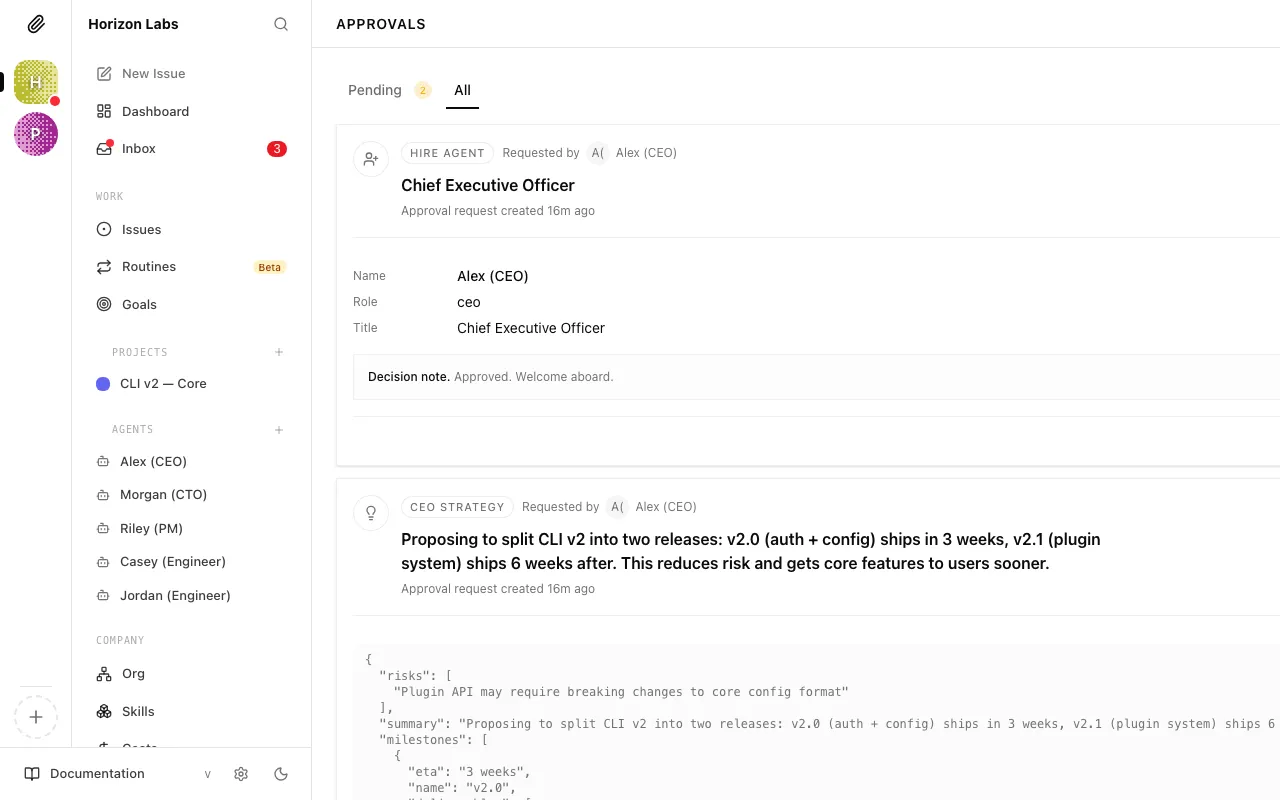
Tip: Approvals don’t expire on their own. If an approval is pending, agents that are waiting on it will pause at that point until you take action. Keep an eye on your approval queue.
You now have the mental model for everything Paperclip does. When something in the UI seems unfamiliar, come back here.