Activity Log
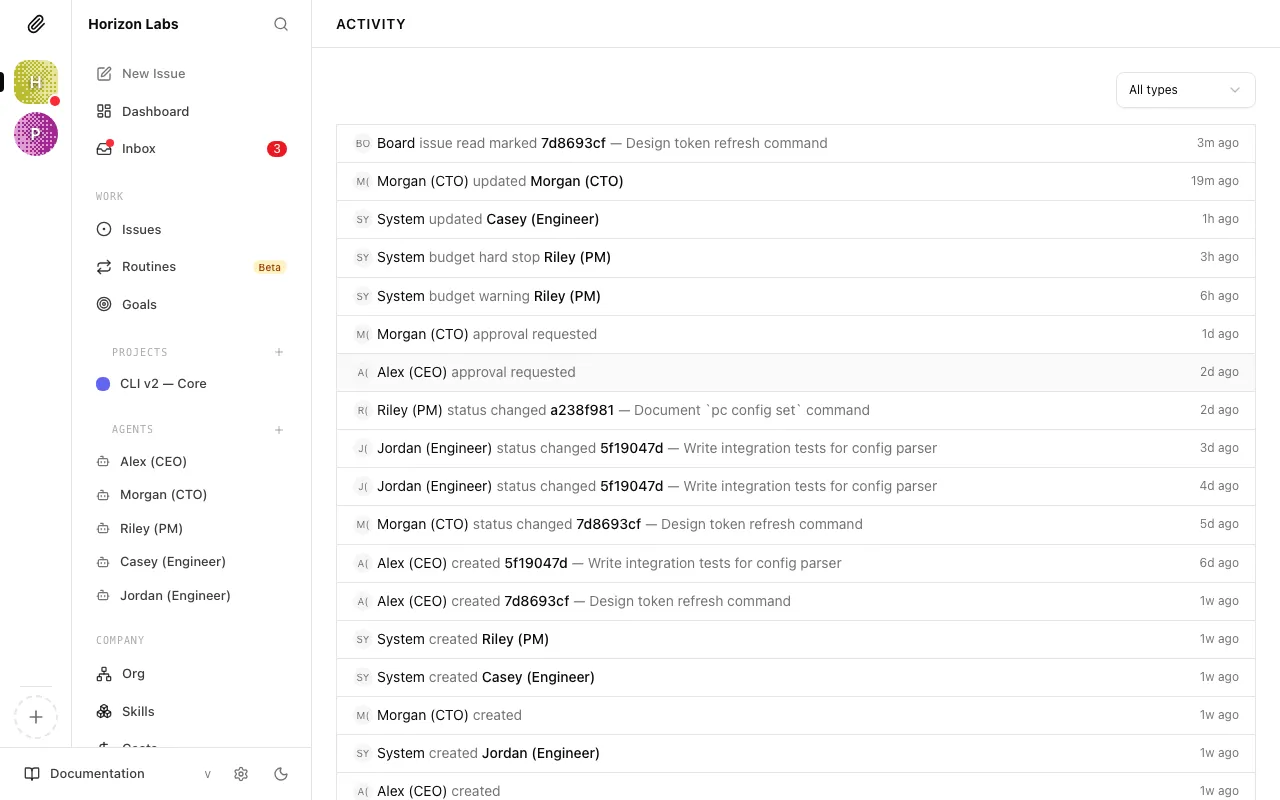
The Activity Log is the complete record of everything that has ever happened in your company. Every time an agent changes a task’s status, posts a comment, gets hired or paused, spends budget, or has a proposal approved — that event is recorded here with a timestamp and the name of whoever caused it.
The log exists for two reasons. First, accountability: you can always see what actually happened and who did it. Second, debugging: when something goes wrong, the Activity Log is your first place to look.
What Gets Logged
Section titled “What Gets Logged”Every mutation in Paperclip produces an activity record. This includes:
- Task events — created, status changed, assigned, reassigned, commented on, closed, cancelled
- Agent events — created, updated, paused, resumed, terminated, heartbeat triggered, heartbeat completed
- Approval events — submitted, approved, rejected, revision requested, resubmitted
- Budget events — budget updated, 80% threshold crossed, agent auto-paused at 100%, budget reset at month rollover
- Company events — goal updated, settings changed
Each record includes:
- Actor — who or what caused the event (an agent by name, or “Board Operator” for actions you took)
- Action — what happened (e.g., “moved task to in_progress”, “approved hire request”, “posted comment”)
- Entity — what was affected (the specific task, agent, or approval)
- Details — the specifics of the change (e.g., old and new status values, the comment text, the budget change amounts)
- Timestamp — exactly when it happened
Reading the Activity Log
Section titled “Reading the Activity Log”The Activity Log is available from the left sidebar. It opens to a chronological feed of all events, most recent first.
Each row in the feed shows the actor’s name, what they did, and when. Clicking a row jumps you to the related issue, approval, agent, project, goal, or run — useful when you want to inspect the thing that changed.
Tip: The Activity Log and the task comment threads show different things. The comment thread on a task shows what the agent said as it worked — its reasoning, questions, and progress updates. The Activity Log shows the structural changes — status transitions, assignments, approvals. Use comments when you want to understand what the agent was thinking; use the log when you want to understand what actually changed and when.
Filtering
Section titled “Filtering”When you’re looking for something specific, use the filter at the top of the Activity page. In the current UI, that filter narrows the list by entity type.
Filter by entity type — narrow to a specific category of events: tasks only, agents only, approvals only, or budget events only.
Using Activity to Debug
Section titled “Using Activity to Debug”The Activity Log is most valuable when something has gone wrong and you need to understand why. Here are the most common scenarios and how to approach them.
“Why did a task get reassigned away from the agent I chose?”
Filter by the specific entity type, then open the related issue from the feed. Look for assignment events. You’ll see exactly when the task changed hands and which actor caused it.
“When did an agent start spending so much?”
Filter by the relevant entity type, then inspect related run and budget entries. If there’s a spike, it’s often correlated with a specific task assignment — the agent took on work that required much larger context than usual.
“Who approved the hire request for [agent name]?”
Filter by entity type = approval, then open the specific hire approval. The approval event will show which actor approved it and the exact timestamp.
“Why isn’t the agent doing anything?”
Filter by entity type and look at the most recent events. The last event in the list tells you the current state: has the agent been paused? Did the last heartbeat complete or fail? Did it complete with no tasks assigned?
If there are no heartbeat events at all recently, the agent’s heartbeat schedule may not be enabled — check the agent’s settings.
“A task has been ‘in progress’ for hours with no comments — what’s happening?”
Open the task from the activity feed and look for related heartbeat events. If you see heartbeats completing but no task update events, the agent may be running but not making progress. Read the most recent comments on the task itself.
If there are no recent heartbeat events at all, the agent may have been paused or may have hit a budget limit — check the agent’s status on the dashboard.
The Activity Log Is Permanent
Section titled “The Activity Log Is Permanent”Unlike agent run transcripts (which are stored per-run and can scroll off), activity records are kept permanently. You can always go back and audit what happened months ago. This is intentional — it’s the basis for accountability in an autonomous AI company.
If you ever need to understand a past decision, resolve a dispute about what an agent did or didn’t do, or understand the sequence of events leading up to a problem, the Activity Log has the full record.
You’ve now covered all five sections of the “Running Your Company” guide set. You know how to read the dashboard, manage tasks, handle approvals, control costs, and use the Activity Log to understand what’s happening. From here, the next guide covers building out your org structure — adding manager agents and worker agents to scale beyond the CEO.