Blocked Inbox
The Blocked tab in your Inbox is where stopped work goes to be triaged. The other tabs (Mine, Recent, Unread, All) show you what to look at next; the Blocked tab specifically surfaces issues that have stalled — they’re waiting on a decision, a recovery run, an external person, or a paused owner — and gives you a single place to clear the jam.
If you’ve ever had an agent quietly sitting on status = blocked while you wondered why nothing was moving, this is the view that calls it out.
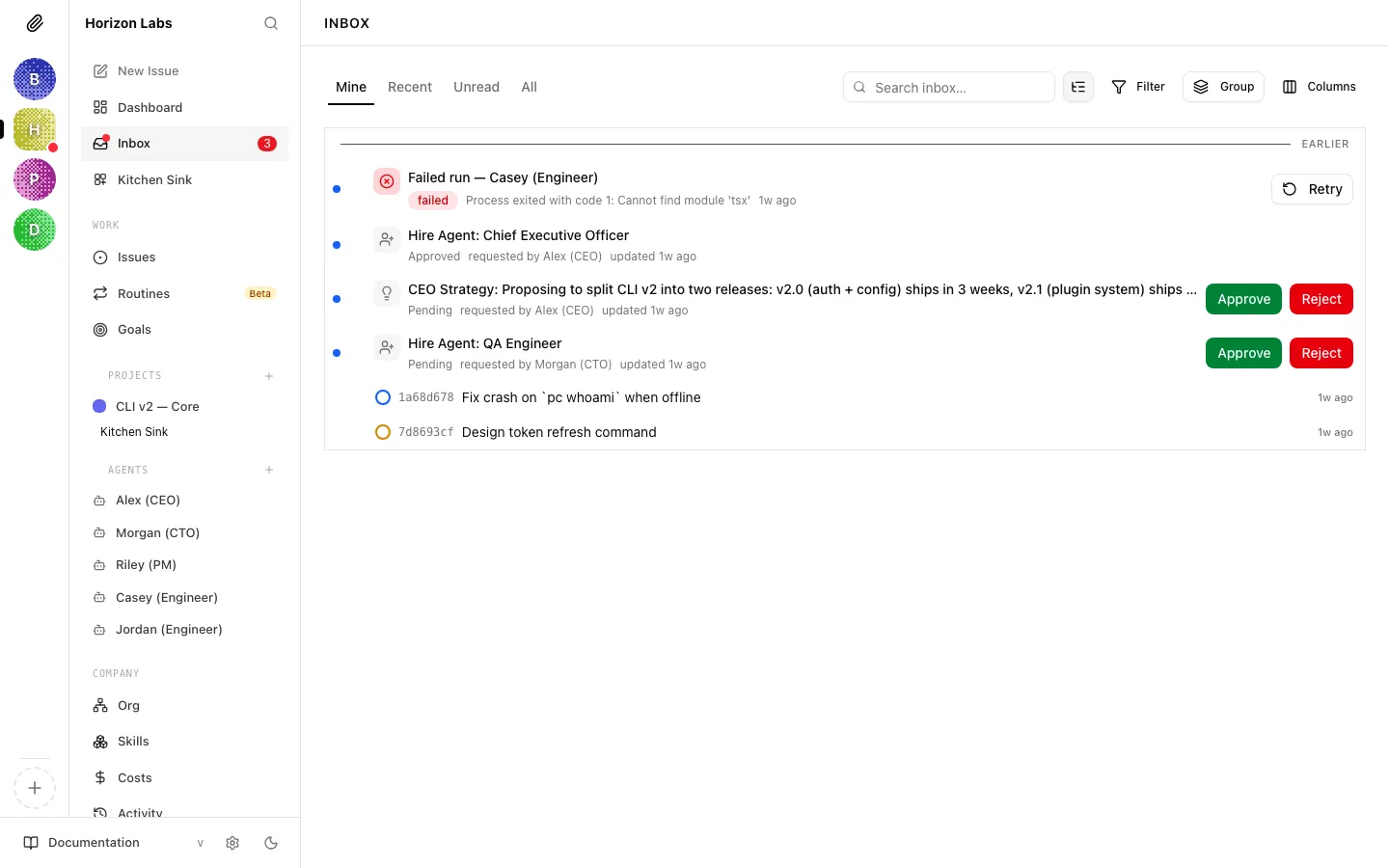
Opening the Blocked tab
Section titled “Opening the Blocked tab”The Blocked tab lives alongside the other Inbox tabs at /inbox/blocked. Switching to it navigates rather than hides content, so you can bookmark or share the URL.
-
Click “Inbox” in the left sidebar, then choose the Blocked tab in the toolbar.
The tab list shows Mine, Recent, Unread, Blocked, and All. The badge next to Blocked shifts colour based on the highest severity in the list — muted when everything is calm, amber when something is high-severity, red when something is critical.
-
Read the empty state if it’s quiet
When nothing is stopped, you’ll see “No work is stopped.” with a follow-up line that explains the purpose of the tab: “Issues that need a decision, recovery, or external action will appear here.” That’s your signal that there’s nothing to triage right now.
Reading a blocked row
Section titled “Reading a blocked row”Every row in the Blocked tab represents one stopped issue. From left to right on desktop you get the status icon, the issue identifier, the issue title with a blocked-reason chip, the owner whose action is required, and how long the issue has been stopped (for example stopped 2h, stopped 3d).
The chip is the most important glanceable signal. It maps the underlying reason to one of six variants:
| Chip label | When it appears | What to do |
|---|---|---|
| Needs decision | The issue is waiting for a board decision, a user decision, or a successful-run disposition pick | Open the issue, make the call, post the decision |
| Blocked chain stalled | A chain of blocked-by links has stalled out and nothing downstream can move | Walk the chain, find the leaf, unblock or cancel it |
| Needs attention | A blocker is unassigned, parked in backlog, was cancelled, or the review path is invalid | Assign, restart, or fix the review/approval participants |
| Recovery required | An open recovery issue is sitting in front of this work | Resolve the recovery issue first |
| External wait | A human or external owner needs to act | Nudge the owner, or unblock by other means |
| Owner paused | The assigned agent isn’t currently invokable | Resume the agent, or reassign the issue |
A small coloured dot in front of the chip flags severity: red for critical, orange for high. Medium and low severity show no dot — they’re still listed, just not flagged for visual urgency.
The line below the title repeats the stopped age and owner on mobile so you don’t lose it when the trailing columns collapse.
Filtering and searching
Section titled “Filtering and searching”The Blocked tab reuses the same filter and search machinery as the rest of the Issues UI, so anything you’ve learned about the Issues page carries over.
- Search — the toolbar search input matches against issue title, identifier, owner label, action label and detail, reason label, and any linked leaf or recovery issue. If nothing matches, you’ll see “No stopped items match your search.”
- Filters popover — narrow by assignee, creator, project, labels, routine visibility, and (when isolated workspaces are enabled) workspace.
- Column picker — the trailing columns (status, identifier, updated time) can be toggled the same way as elsewhere.
Grouping and sorting
Section titled “Grouping and sorting”Two extra controls show up only on the Blocked tab.
Group by has two options:
- Blocker type — bucket the list by the chip variant, in the canonical order Needs decision → Blocked chain stalled → Needs attention → Recovery required → External wait → Owner paused. Each group header shows the bucket label and a count, and is collapsible.
- None — flat list.
Sort by has three options:
- Most urgent — orders by severity rank first (critical → high → medium → low), then by how long the issue has been stopped. This is the deterministic urgency order used by triage workflows.
- Most recent — orders by the most recent stop or update time.
- Longest stopped — surfaces the issues that have been waiting the longest first. Useful for clearing backlog rot.
Both controls persist while you’re on the tab.
What to do with each blocker type
Section titled “What to do with each blocker type”The chip is a triage hint, not a verdict. Here’s how to clear each variant:
- Needs decision. Open the issue. If it’s a Pending board decision or Pending user decision, post the decision in the chat or via the linked approval. If it’s Pick disposition, choose how the successful run should be handled.
- Blocked chain stalled. Follow the
blocked bylinks from the Issue Properties sidebar to the leaf issue. Unblock or cancel that one — the chain will clear on the next heartbeat. - Needs attention. Read the row: an Unassigned blocker needs an agent or human owner; a Parked blocker needs its status moved out of backlog; a Cancelled blocker needs to be replaced or the dependency removed; a Review without action path or Invalid review participant needs the Reviewers / Approvers fixed on the parent issue.
- Recovery required. A Recovery in progress row points at an open recovery issue. Resolve that one and the parent will become runnable again.
- External wait. Someone outside the system owes you action. Use the owner column to chase them, or take the work on yourself.
- Owner paused. The assigned agent has been paused or otherwise made uninvokable. Resume the agent or reassign.
How the data is built
Section titled “How the data is built”Each issue carries an optional blockedInboxAttention payload from the server. The Blocked tab requests it explicitly — it calls /api/issues with attention=blocked and includeBlockedInboxAttention=true — and the UI only renders rows that have attention metadata, so an issue with status = blocked but no attention payload won’t appear.
The same contract powers the badge count next to the Blocked tab in the Inbox toolbar, so the count and the list stay in lockstep.