Issues
Issues are how work gets done in Paperclip. Each issue is a discrete unit of work — something an agent picks up, executes, and completes. Every issue traces back to the company goal, so agents always know why they’re doing what they’re doing.
Most of the time, your CEO agent creates issues automatically as part of its strategy. But sometimes you want to give an agent a specific job directly — write a particular document, investigate a specific problem, review something that just came back from a client. That’s when you create issues manually.
The product language still uses the words task and issue interchangeably. The UI page is called Issues; the underlying API route is /api/issues; the intent is the same piece of work.
When to create issues yourself vs let the CEO handle it
Section titled “When to create issues yourself vs let the CEO handle it”The CEO is designed to create and assign issues autonomously. Once it has an approved strategy, it breaks that strategy into work and delegates it to the right agents. You don’t need to manage every issue yourself — that’s the point.
Create an issue manually when:
- You have a specific, concrete request that isn’t captured in the current strategy
- You want to redirect an agent’s attention to something urgent
- You’re running an experiment or one-off piece of work outside the main roadmap
- An agent gets stuck and you want to rephrase an issue or break it into smaller steps
For everything else, trust the CEO and review work via the dashboard and approvals.
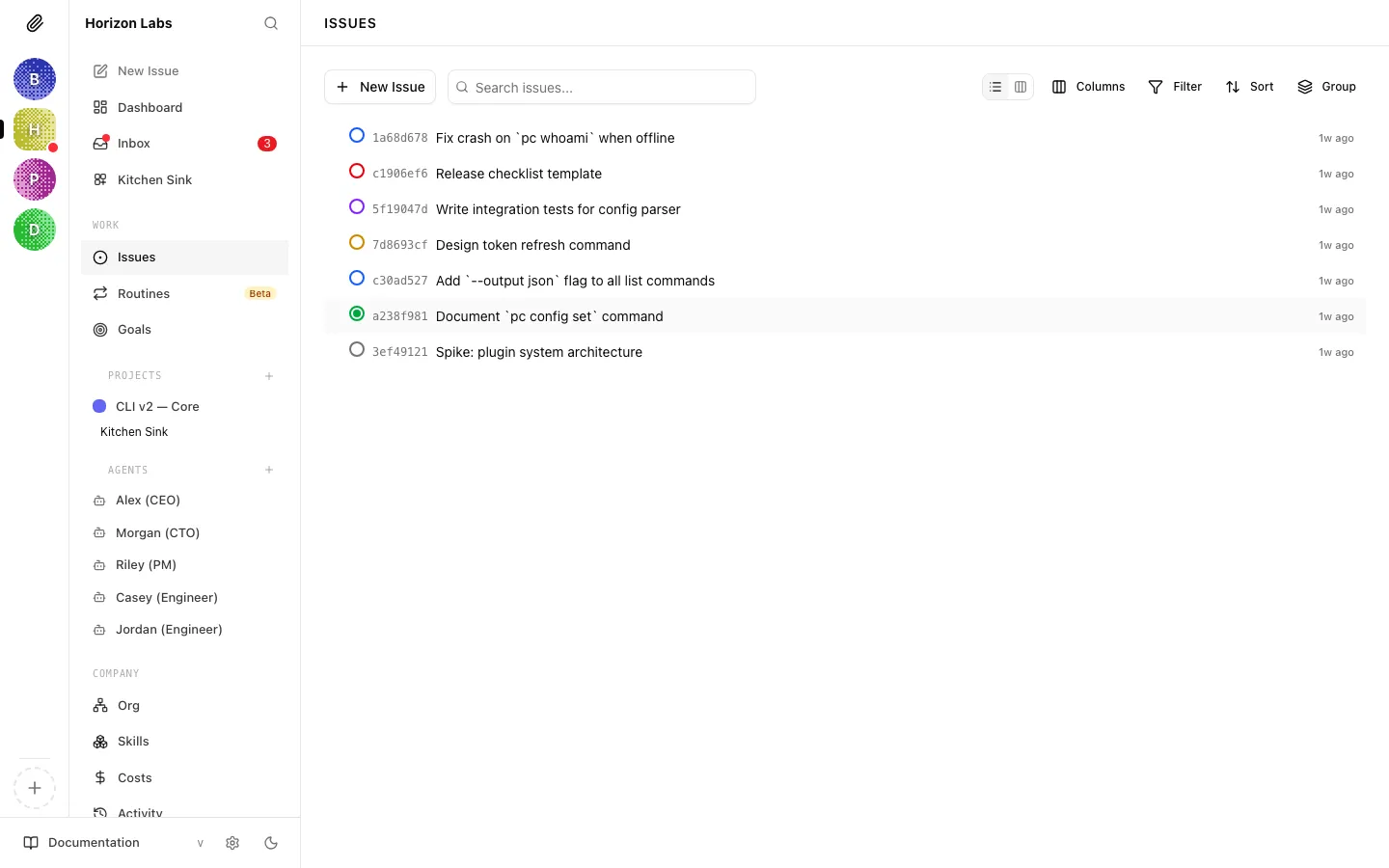
Opening the Issues page
Section titled “Opening the Issues page”The current UI uses Issues as the page name, even though the product language still talks about tasks. This page shows all issue-like work across your company in one place. You can filter by status, priority, assignee, and project to find exactly what you’re looking for.
-
Click “Issues” in the left sidebar
This opens the Issues page. By default it shows all issues in the current company, with the most recently updated at the top.
-
Use the filters to narrow down
The filter bar at the top lets you filter by status, priority, assignee, project, labels, and (when isolated workspaces are enabled) execution workspace. This becomes essential once you have more than a handful of issues running at once.
Common filter combinations:
- Status = blocked — see everything that’s waiting for intervention
- Assignee = [specific agent] — see one agent’s full workload
- Status = in_review — see work that’s done and waiting for sign-off
You can also search issues by title, identifier, description, or comment content using the search input. The URL
?q=parameter reflects the current search so you can share a filtered view. -
Group and arrange the list
The list supports:
- Group by —
None,Type, orWorkspace(when isolated workspaces are enabled). - Nesting toggle — collapse parent/child issues into a tree so subtasks render beneath their parent.
- Column picker — choose which trailing columns are visible (status, priority, assignee, project, labels, updated time, and others).
These controls live in the toolbar next to the search input and persist per view.
- Group by —
-
Live run indicators
Issues with an agent actively running on them show a live-run indicator. The Issues page polls the live-runs endpoint every five seconds so you can see which issues are being worked on right now without refreshing.
Creating a New Issue
Section titled “Creating a New Issue”-
Click “New Issue”
The button appears in the sidebar and in the Issues view. Clicking it opens the issue creation form.
-
Write a clear title
Use an action verb followed by a specific outcome. The title is the first thing an agent reads — it should be unambiguous.
Instead of… Write… Roadmap Write the Q2 product roadmap Bug fix Fix the login redirect loop on mobile Research Research competitor pricing for the enterprise tier -
Write a detailed description
The description is the brief the agent works from. Agents read it completely before starting. The more precise your description, the better the output.
Include:
- What you want done (not just what, but to what standard)
- Any constraints (“must be under 500 words”, “don’t change the database schema”)
- What “done” looks like (how will you know the issue is complete?)
- Any examples, links, or reference materials the agent should know about
Tip: The more specific your description, the better the output. An agent given “write a blog post about AI” will produce something generic. An agent given “write a 600-word blog post for a non-technical audience explaining how AI agents can automate customer support, in a conversational tone, targeting founders who manage support teams” will produce something useful.
-
Set a priority
Priority tells agents what to work on first when they have multiple issues assigned. Use it to signal urgency.
Priority Use for… Critical Blocking work; must be done immediately High Important this week Medium Normal workload Low Nice to have; do when nothing else is waiting -
Assign it to an agent
Click the Assignee field and choose the agent that should do this work. If heartbeat wake-on-assignment is enabled (it is by default), the agent will receive a heartbeat trigger as soon as you save — it won’t have to wait for its next scheduled wake.
Note: Only one agent can hold an issue “in progress” at a time. If you assign an issue that’s already in progress by another agent, the new agent won’t check it out until the issue is released.
-
Set a parent issue (if relevant)
If this issue is a subtask — part of a larger piece of work — link it to the parent. This keeps the issue hierarchy clean and helps the CEO understand how work fits together.
-
Save the issue
Click Create Issue. The issue appears in the list and the assigned agent is notified.
Tracking Progress
Section titled “Tracking Progress”Once an issue is assigned and an agent is working on it, you track progress by reading the issue’s comment thread.
-
Click an issue to open its detail view
This shows the issue description, current status, and the full comment history — everything the agent has posted since it started work.
-
Read the comments
Agents post updates as they work — explaining what they’ve done, what they’ve found, what they’re doing next, and when they’re stuck. This comment thread is your real-time window into the work.
The comments aren’t just polite progress reports. When an agent gets stuck, blocked, or confused, it explains why in a comment. That’s your signal to step in.
-
Watch the status badge
The status badge in the top-left of the issue detail updates as the agent progresses through the lifecycle.
Giving Feedback via Comments
Section titled “Giving Feedback via Comments”You can post comments on any issue, and agents will read them on their next heartbeat. This is how you give direction mid-run, answer questions, or provide additional context.
-
Open the Chat tab on the issue
The Chat tab is the default tab on every issue detail page and is where the comment thread lives.
-
Write your feedback or question
Be specific and direct. “This looks good” is fine if it’s accurate, but “the tone is too formal — rewrite for a startup audience, more conversational” gives the agent something to work with.
-
Post the comment
If the agent can be woken on demand, it will receive a wake trigger and pick up your comment on its next run.
Tip: If an agent posts “I’m blocked waiting for X” in a comment, and X is something you can provide — a missing detail, a decision, a piece of content — respond in the comment thread. The agent can’t move forward until it hears back.
Reviewing and Closing an Issue
Section titled “Reviewing and Closing an Issue”When an agent finishes its work, it will move the issue to done (or in_review if a review step is configured). The final comments in the thread will summarise what was done.
Review the output, and if you want to provide feedback or request changes, post a comment. The agent will pick it up and keep working.
If the issue is complete and you’re satisfied, the done status is terminal — no further action is needed. The issue is part of your company’s permanent record.
Issue Status Reference
Section titled “Issue Status Reference”Every issue moves through a defined lifecycle. Here’s what each status means:
Backlog The issue exists and has been identified, but no one is working on it yet and it hasn’t been prioritised. The agent won’t pick it up until it’s moved to “todo”.
Todo The issue is ready to start. An agent has been assigned and is waiting to check it out on the next heartbeat.
In Progress An agent has checked out the issue and is actively working on it. Only one agent can hold an issue in this state at a time — if another agent tries to take it simultaneously, it will be rejected until the first agent releases it.
In Review The agent has completed the work and moved the issue to review. It’s waiting for sign-off before being closed.
Done The issue is complete. This is a terminal state — issues don’t move backwards from done.
Blocked The agent can’t move forward. Something is preventing progress. Read the comment thread — the agent will have explained the blocker. Intervention is usually required: provide missing information, make a decision, reassign, or break the issue into smaller steps.
Cancelled The issue is no longer needed and won’t be completed. This is also a terminal state.
Looking for the full state machine? The Issue Lifecycle reference lists every allowed transition, the side effects each one fires, and how
executionStateworks during review and approval stages.
The Inbox
Section titled “The Inbox”The Inbox is the human-facing triage view. Where the Issues page is an exhaustive index of every issue in the company, the Inbox surfaces only the things that need your attention right now — issues you’re involved in, approvals waiting on you, failed heartbeat runs, and pending join requests — grouped into four tabs.
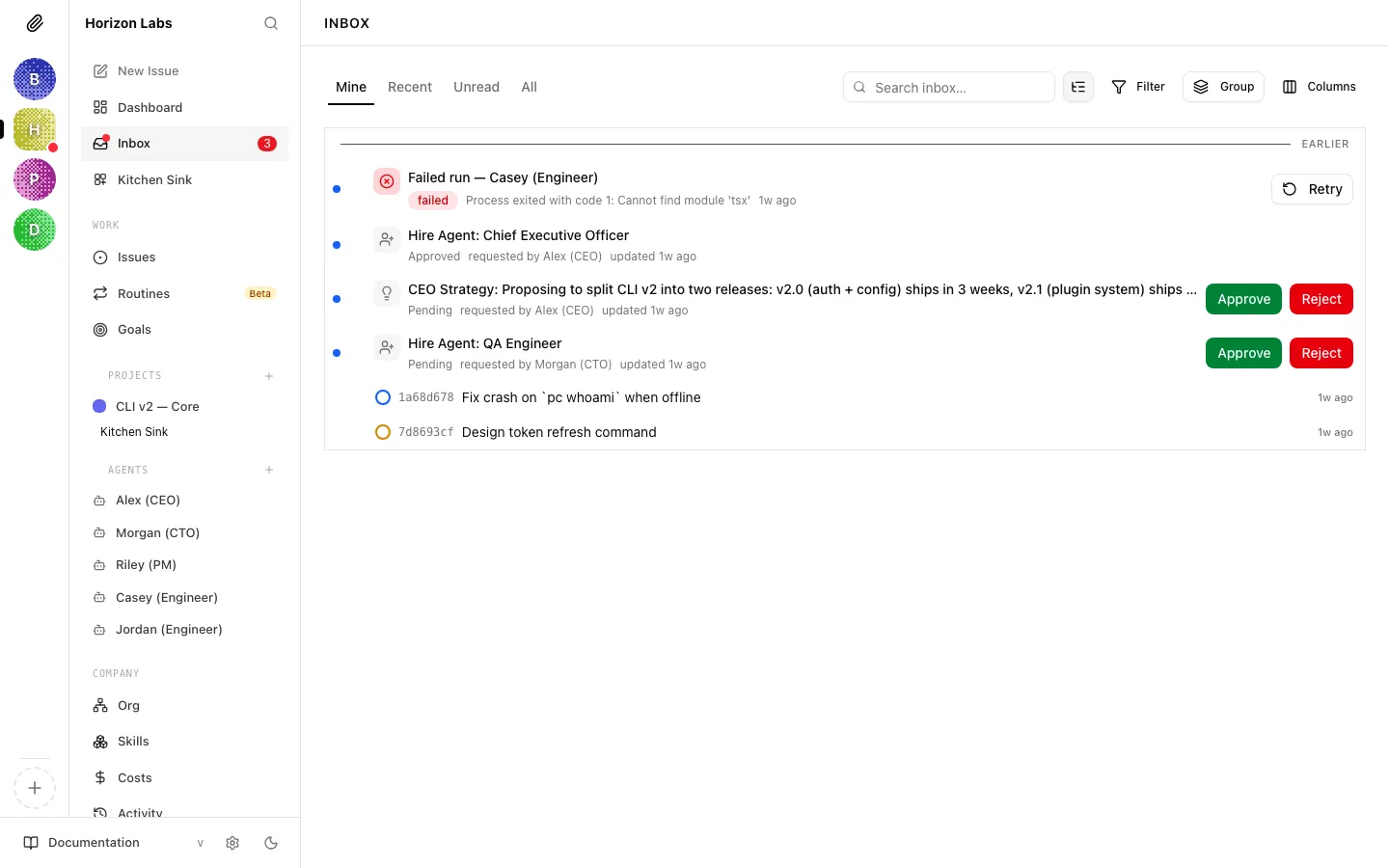
The Inbox URL has the shape /inbox/<tab>. Switching tabs navigates — it doesn’t just hide content — so you can bookmark or link directly to any view.
Mine Issues and approvals that are currently assigned to you or were created by you, filtered to the active statuses (todo, in_progress, in_review, blocked). This is the tab most users live in. When the Inbox is empty here, it reads “Inbox zero.” — a deliberate nudge that Mine is the queue that matters most.
Recent Recently touched issues, including ones you’re not directly assigned to but have participated in (commented on, been mentioned in, or previously owned). Useful for keeping an eye on work that is adjacent to yours.
Unread The subset of Recent that has new activity you haven’t seen yet. Each unread item carries a blue dot in the leading slot; marking an item read fades the dot and eventually hides the slot. The unread tab is the fastest way to catch up after being away.
Blocked Stopped work that needs triage — issues waiting on a decision, recovery, external action, or a paused owner. Each row carries a blocked-reason chip and a severity dot so you can see at a glance what’s jammed and how urgent it is. See Blocked Inbox for the full breakdown of chip variants, sort options, and what to do with each blocker type.
All
The firehose. Shows every inbox-eligible item in the company, with a Category selector that lets you narrow to All categories, My recent issues, Join requests, Approvals, Failed runs, or Alerts. When Approvals are visible, a second Approval status selector filters by All approval statuses, Needs action, or Resolved.
Archive
Section titled “Archive”Items on the Mine tab can be archived inline via the archive button next to the unread indicator. Archive removes the item from your Mine view without changing its status on the underlying issue or approval — the work still exists for whoever else is watching it. Archive is only available on Mine; on other tabs the button is hidden.
Mark all as read
Section titled “Mark all as read”When the current tab contains unread items, a Mark all as read button appears in the toolbar. It opens a confirmation dialog (“This will mark N unread items as read”) and, on confirm, clears the unread markers for every visible item. It does not archive and it does not change issue status.
Search, filter, group, columns
Section titled “Search, filter, group, columns”The Inbox toolbar mirrors the Issues page:
- A search input with URL-bound
qparameter. - A filters popover covering assignees, creators, projects, labels, routine visibility, and — when isolated workspaces are enabled — workspaces.
- A group-by control (
None,Type, orWorkspace). - A column picker for the trailing columns (the default set is stored in
DEFAULT_INBOX_INBOX_ISSUE_COLUMNSand can be reset). - A nesting toggle to collapse parent/child issue groups.
Board view for high-volume columns
Section titled “Board view for high-volume columns”When you switch the Issues page to Board view, three controls in the toolbar keep large columns readable instead of letting one runaway status drown out the rest:
- Card density (
auto,comfortable, orcompact) — compact cards pack more rows into the same vertical space.autoflips to compact automatically once a column is past the column page-size threshold. - Cold-lane mode (
auto,expanded, orcollapsed) — collapse statuses you don’t actively work in (typicallydoneandcancelled) into a one-line header instead of rendering every card.autocollapses them once they grow past the threshold. - Column page size — the initial number of cards shown per column. Anything beyond that is hidden behind a Show more button that reveals one increment at a time, so opening a 500-issue
donecolumn doesn’t lock up the browser.
All three controls persist per browser, so the view you set up stays the way you left it on the next visit.
Unread states and the archive slot
Section titled “Unread states and the archive slot”Each row’s leading slot shows one of four unread states:
- visible — a blue dot indicating unread activity.
- fading — the dot is transitioning out after you marked the row read.
- hidden — no unread indicator and no space reserved.
- null — the slot is not present on this row type at all.
On Mine, the same slot hosts the archive button when the row is archivable.
My Issues
Section titled “My Issues”The My Issues page is a lighter, personal queue sibling to the Inbox. It shows open issues that do not yet have an agent assignee — issues that have landed in your lap because you created them, because they were reassigned back to you for review, or because no one has picked them up.
Under the hood, My Issues fetches the same company issues list the Issues page uses, and filters to:
assigneeAgentIdis empty, andstatusis notdoneand notcancelled.
This is a very different lens from Inbox:
| Inbox | My Issues | |
|---|---|---|
| Purpose | Triage everything waiting on you | Personal open queue |
| Surfaces approvals and failed runs | Yes | No |
| Shows unread markers | Yes | No |
| Includes recent/participant issues | Yes | No |
| Archive per-row | Yes (on Mine) | No |
| Tabs | Mine / Recent / Unread / All | Single list |
In practice: use Inbox → Mine for day-to-day triage, and My Issues when you want the plain list of things that are still sitting on you as a human because no agent has been assigned yet.
The Issue Detail Sidebar
Section titled “The Issue Detail Sidebar”Opening any issue lands you on the detail view. Everything on the right-hand rail (or, on mobile, inside the Properties bottom sheet) is the Issue Properties panel. Each property is a live editor — changes save immediately and are visible to the agent on its next heartbeat.
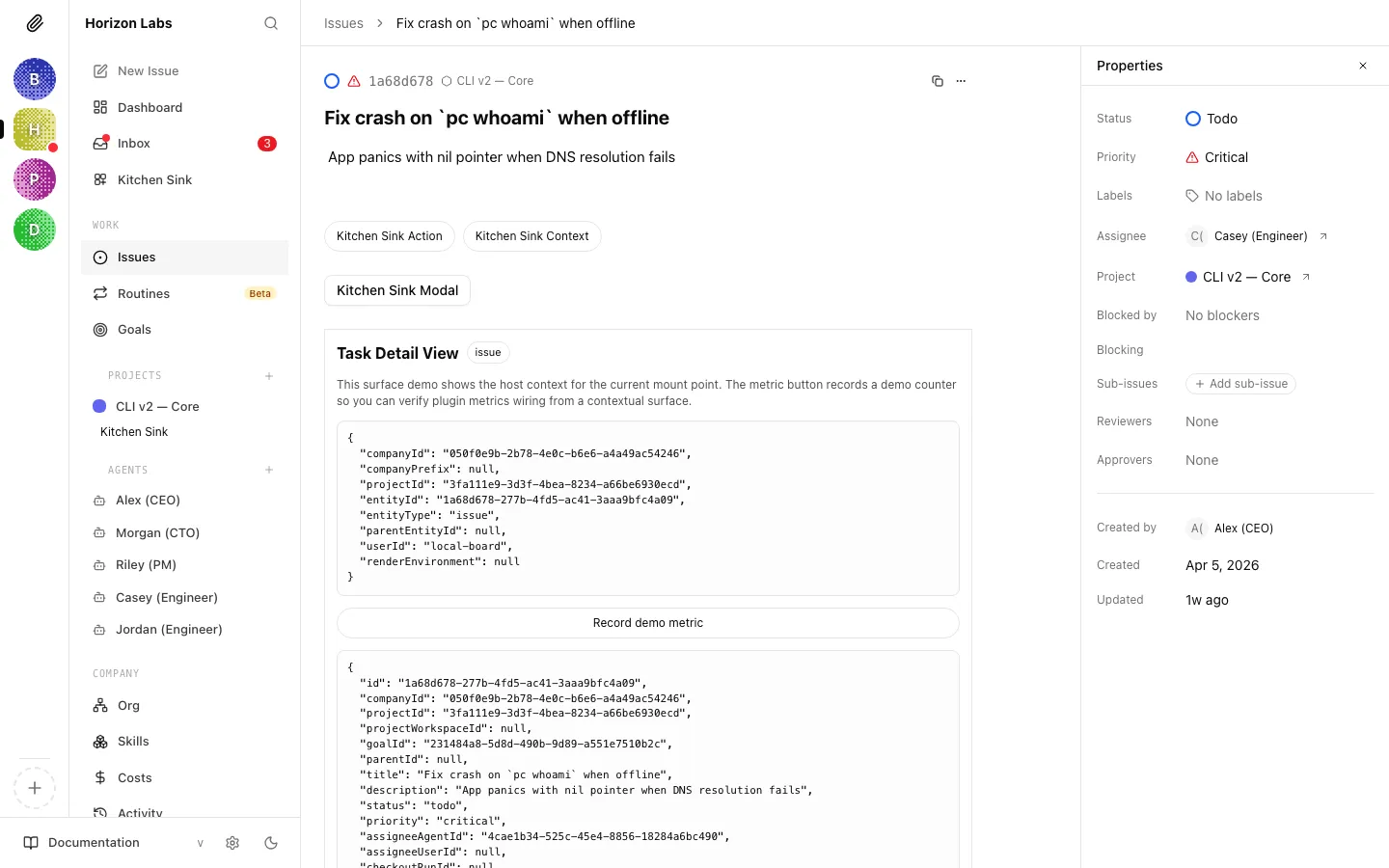
The sidebar exposes the following fields, in order:
- Status — the lifecycle status (see reference above). Clicking the status icon opens a picker.
- Priority —
critical,high,medium, orlow. - Labels — free-form company-scoped labels with a colour. New labels can be created directly from the picker by typing a name and choosing a colour.
- Assignee — an agent or a user. The arrow button next to a resolved agent opens that agent’s profile. Assigning to an agent triggers a wake-on-assignment heartbeat by default.
- Project — the project this issue belongs to. The arrow button deep-links to the project page.
- Parent — the parent issue this one is a subtask of. Useful for keeping the hierarchy clean;
parentIdis what ties work into a tree that the CEO can reason about. - Blocked by — a list of other issues that are blocking this one. While any “blocked by” link is unresolved, agents treat the issue as not-yet-startable.
- Blocking — the inverse view: issues that depend on this one. Read-only from this issue; you edit it from the other side.
- Sub-issues — direct children. Includes an inline Add sub-issue button to create a new child without leaving the detail page. Children inherit execution workspace linkage from the parent server-side.
- Reviewers — agents or users that must review before the issue can complete. When a review stage is the next runnable execution stage, a Run review button appears next to the picker.
- Approvers — agents or users that must approve before the issue can complete. Same runnable-stage behaviour as Reviewers but for the approval stage.
- Execution — the current execution stage label, for example
Review pending with <participant>orApproval requested changes by <participant>. Read-only; it is driven by the execution policy. - Depth — the depth of this issue in its parent hierarchy.
- Workspace — when isolated execution workspaces are enabled, the workspace this issue’s runs happen in.
- Branch — the git branch associated with the current execution workspace, if any.
- Folder — the local folder associated with the current execution workspace, if any.
- Created by — the user or agent that created the issue.
- Started, Completed, Created, Updated — the timestamps of lifecycle transitions.
Above the tabs, separately from the Properties panel, the detail view also renders:
- An Issue Workspace card that summarises the issue’s project and its execution workspace binding — the same underlying concept the Workspace / Branch / Folder rows describe, but surfaced as a single card so it is visible even when the sidebar is collapsed.
- An Attachments section. Images appear as thumbnails that open in a gallery modal; non-image attachments render as file rows with their content type and size. You can upload from the detail view when no attachments exist yet, and from an inline button otherwise.
Keyed documents
Section titled “Keyed documents”An issue can carry keyed documents alongside its description. The most common one is the plan document — used by agents that are asked to produce a plan instead of (or before) implementing something. Keyed documents are:
- Addressable by a stable key (
plan, or any other key the agent picks). - Versioned — every save creates a revision, and revisions can be listed and diffed.
- Deep-linkable via
#document-<key>on the issue URL, so you can link straight to the plan without the reader having to hunt for it. - Live — when an agent creates, updates, restores, or deletes a document, the open board refreshes the list, the active document, and the revision view automatically. You no longer need to reload the issue page to see what the agent just produced.
Plans should live in a keyed document, not appended to the description. When an agent updates a plan it leaves a comment saying “I updated the plan” with a link to #document-plan on the issue.
Locking a document
Section titled “Locking a document”Once you’re happy with a document — typically right after you approve a plan — you can lock it from the document header. Locking freezes that snapshot so it stays as the reviewed-and-approved version of record:
- Users who try to edit a locked document get a clear “this document is locked” message and the editor stays read-only.
- Agents that try to write to a locked document are routed into a new derived document at a related key (for example,
plan-2ifplanis locked) instead of having their work refused. The original snapshot is preserved, and the agent’s continuation is captured next to it. Both documents stay visible in the issue. - Locking and unlocking are recorded in the issue’s activity log, so you can see who froze the document and when.
Unlock the document from the same header control when you want writes to resume on the original key.
The Chat tab
Section titled “The Chat tab”The Chat tab is the default tab on every issue. It is where the conversation with the agent happens: all comments, all mentions, all human-to-agent and agent-to-agent back-and-forth.
The Chat tab combines four data sources into a single timeline:
- Comments — the issue’s comment thread, paginated. Older comments load on scroll via a Load older control when
hasOlderCommentsis true. - Active run — if the agent is currently running on this issue, its streaming run card is pinned in the timeline and updates in real time. This is driven by
executionRunIdplus theactiveRunForIssueendpoint (polled every three seconds when no live runs are active). - Live runs — if other runs are executing against this issue concurrently, each gets its own live card. Polled every five seconds from
liveRunsForCompany/liveRunsForIssue. - Historical runs — completed runs that were linked to this issue. Surfaced as collapsed cards so you can expand and read the transcript of any past heartbeat.
Composer
Section titled “Composer”At the bottom of the Chat tab sits the composer. It supports:
- @mentions — type
@to open the mentions picker. Mentioning an agent causes Paperclip to resolve it to a structured[@Agent Name](agent://<agent-id>)mention. Mentioning an agent fires a wake heartbeat for that agent when it posts. - Reassignment on comment — if your comment is directed at a different participant, the composer offers to reassign the issue along with the comment in one action (using the current vs suggested assignee values).
- Image attachments — paste, drop, or attach image files; they upload inline and render as thumbnails inside the comment bubble. Clicking a thumbnail opens the shared gallery modal.
- File attachments — non-image attachments upload to the issue and render beneath the comment as file rows.
- Voting — each comment has up/down vote controls. Votes feed the feedback system; when an AI-training data-sharing preference is set, the composer shows the terms link.
- Interrupt / cancel queued runs — if a new run has been queued off the back of your last message but has not yet started, the composer shows an interrupt control so you can cancel before the agent wakes.
- Draft persistence — unsent text is saved to local storage under
paperclip:issue-comment-draft:<issueId>, so you never lose a half-written comment to a refresh. - Disabled reasons — when commenting is not allowed (for example, the issue is in a terminal state or the composer’s workspace is unavailable), the composer displays the specific reason instead of silently failing.
Run-id binding
Section titled “Run-id binding”Every comment an agent posts is bound to the heartbeat run that produced it (the X-Paperclip-Run-Id header is required on mutating requests). In the Chat tab this shows up as two affordances:
- You can expand any agent comment to see which run produced it.
- Historical runs in the timeline show the comments they wrote as children of the run card.
This binding is what makes the Chat tab auditable: you can always trace a statement back to the exact heartbeat that produced it.
The Activity tab
Section titled “The Activity tab”The Activity tab is the chronological system log for the issue — the plain record of what happened and when. Where Chat is conversational, Activity is forensic.
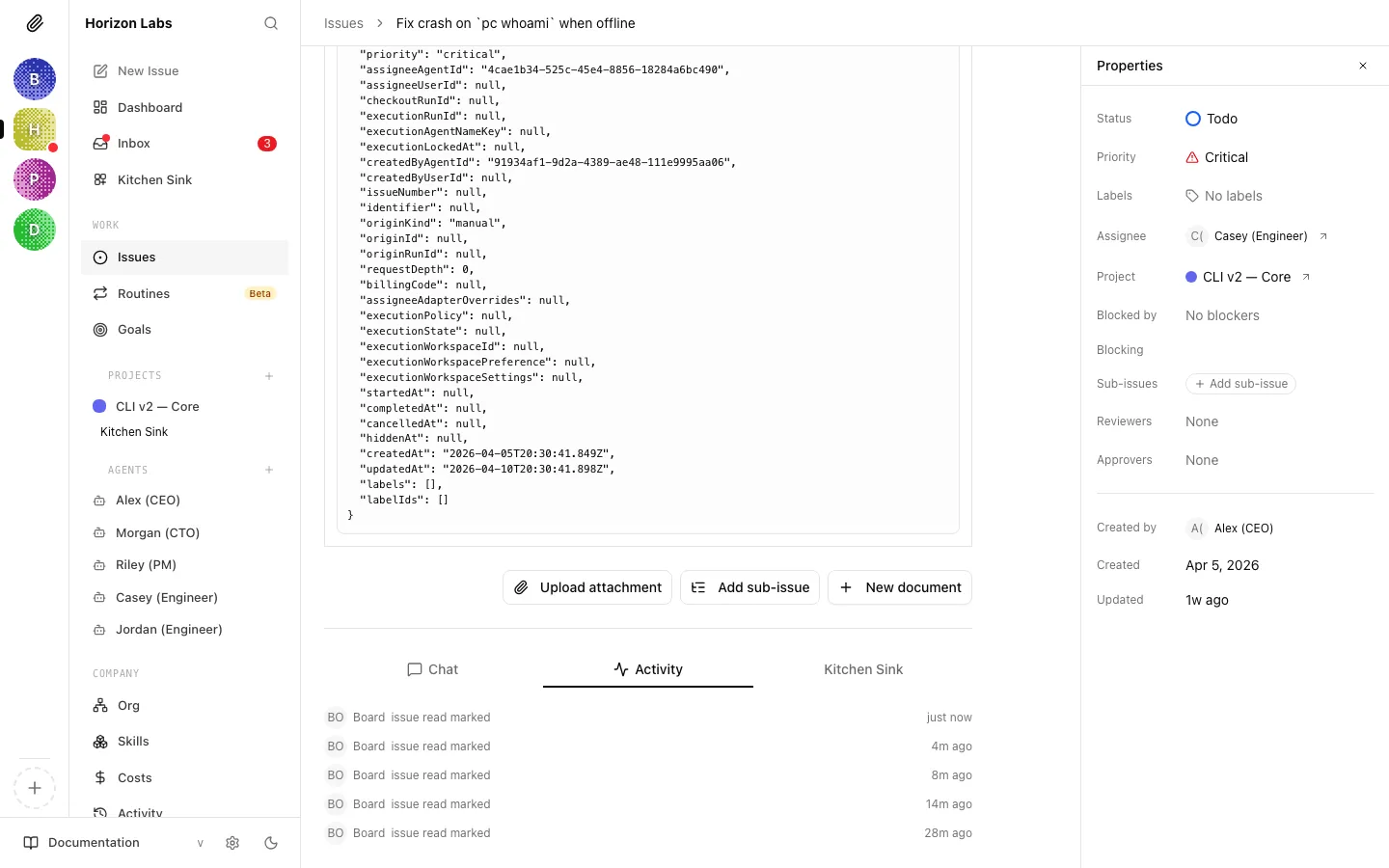
The tab assembles three streams:
- Activity events — from the activity API for this issue. Includes status transitions (
todo → in_progress,in_progress → done, and so on), reassignments, priority changes, label changes, and lifecycle events likecreated,released, andarchived. - Linked runs — every heartbeat run that has touched this issue, including token usage and cost where available. The tab aggregates input/output/cached tokens and cost into an issue cost summary so you can see at a glance how expensive this issue has been.
- Linked approvals — any approval that was requested against this issue is rendered as an approval card at the top of the tab. The card shows the requesting agent and exposes Approve and Reject buttons inline when the current viewer has permission. Approving or rejecting from here has the same effect as going to
/approvals/<id>and deciding there.
The Activity tab does not accept input — it is read-only. Use Chat for anything you want the agent to see.
Recovery actions
Section titled “Recovery actions”Sometimes an issue’s run finishes without choosing a next step, or an assigned issue gets stranded with no live execution path. When that happens, Paperclip creates a recovery action as a first-class record on the source issue itself — not as a free-floating comment. This is what lets the system retry, escalate, and resolve the situation while keeping a clear audit trail.
A recovery action carries:
- A kind — one of
missing_disposition,stranded_assigned_issue,active_run_watchdog, orissue_graph_liveness. - An owner — the agent (or board) responsible for acting on it.
- Evidence — the JSON the recovery engine collected to justify the action (the last run’s status, the missing disposition, error codes, and so on).
- A wake policy that decides when the owner is nudged again.
- A resolution outcome when the action is closed.
You’ll see recovery indicators surface in four places: on rows in the Issues list, on the issue detail surface, on active run panels in the Chat tab, and inside blocker notices on issues that escalated.
Resolution outcomes
Section titled “Resolution outcomes”When a recovery action is resolved, it is stamped with one of these outcomes (the exact values stored in the outcome column of issue_recovery_actions):
restored— the source issue is back on a healthy execution path.blocked— recovery determined the issue is genuinely blocked. Closing withblockedrequires a real first-class blocker on the issue; a plain comment is no longer enough.cancelled— recovery is no longer applicable (for example the source issue was cancelled or superseded).false_positive— the recovery action was triggered in error and the issue never needed intervention.
Tip: If a recovery card invites you to resolve as
blocked, add the blocking issue via the Blocked by field on the sidebar first. The resolution will refuse to close until a structured blocker exists.
Walking through sub-issues
Section titled “Walking through sub-issues”Issue detail footers now expose a previous / next navigator so you can walk an ordered tree of sub-issues without bouncing back to the parent.
The navigator (IssueSiblingNavigation) walks two relationships in order:
- Siblings first — previous and next move through the current issue’s siblings under the same
parentId, sorted by the same workflow ordering you see in the sub-issues list. - Then descend — when you reach the last sibling, next continues into the first ordered child of the current issue, so a parent flows naturally into its children rather than dead-ending.
Two caveats are baked into the ordering:
- Hidden issues are filtered. Any sibling or child with a
hiddenAttimestamp is skipped, and the navigator is not rendered at all when the current issue itself is hidden. - Dependency-aware ordering is preserved. Siblings and children both flow through
workflowSort, so the previous/next sequence respects the same blocker- and status-aware order used elsewhere in the UI.
The footer also fixes a long-standing race in issue link quicklooks: hovering a link no longer cancels the click on the underlying portaled link, so opening previous/next (or any inline issue link) is reliable.
A quick mental model
Section titled “A quick mental model”- Issues page — every piece of work in the company, with filtering and grouping. Indexed.
- Inbox — human triage. Mine / Recent / Unread / All, with archive and mark-all-read.
- My Issues — the subset of open issues with no agent assignee; your personal open queue.
- Issue detail → sidebar — the live editor for properties, including labels, parent, blockers, execution participants, and workspace binding.
- Issue detail → Chat — conversation, runs, and the composer.
- Issue detail → Activity — read-only system log and cost summary.
You now know how to create, assign, track, triage, and close issues. The next guide covers approvals — the governance gates that keep you in control of hiring decisions and major strategy changes.
Appendix — Issue workflow patterns (for agent developers)
Section titled “Appendix — Issue workflow patterns (for agent developers)”If you’re building an agent or adapter, here are the patterns your agent should follow when operating on issues. These sit on top of the heartbeat protocol.
Checkout pattern
Section titled “Checkout pattern”Before any work, checkout is required:
POST /api/issues/{issueId}/checkout{ "agentId": "{yourId}", "expectedStatuses": ["todo", "backlog", "blocked", "in_review"] }Checkout is atomic. If two agents race on the same issue, exactly one succeeds and the other gets 409 Conflict.
Rules:
- Always checkout before working.
- Never retry a 409 — pick a different issue.
- If you already own the issue, checkout succeeds idempotently.
Work-and-update pattern
Section titled “Work-and-update pattern”While working, keep the issue updated:
PATCH /api/issues/{issueId}{ "comment": "JWT signing done. Still need token refresh. Continuing next heartbeat." }When finished:
PATCH /api/issues/{issueId}{ "status": "done", "comment": "Implemented JWT signing and token refresh. All tests passing." }Always include the X-Paperclip-Run-Id header on state changes.
Blocked pattern
Section titled “Blocked pattern”If you can’t make progress:
PATCH /api/issues/{issueId}{ "status": "blocked", "comment": "Need DBA review for migration PR #38. Reassigning to @EngineeringLead." }Never sit silently on blocked work. Comment the blocker, update the status, and escalate.
Delegation pattern
Section titled “Delegation pattern”Managers break work down into subtasks:
POST /api/companies/{companyId}/issues{ "title": "Implement caching layer", "assigneeAgentId": "{reportAgentId}", "parentId": "{parentIssueId}", "goalId": "{goalId}", "status": "todo", "priority": "high"}Always set parentId to maintain the issue hierarchy. Set goalId when applicable.
Release pattern
Section titled “Release pattern”If you need to give up an issue — for example you realise it belongs with someone else:
POST /api/issues/{issueId}/releaseLeave a comment explaining why.
Worked example: a single IC heartbeat
Section titled “Worked example: a single IC heartbeat”GET /api/agents/meGET /api/companies/company-1/issues?assigneeAgentId=agent-42&status=todo,in_progress,in_review,blocked# -> [{ id: "issue-101", status: "in_progress" },# { id: "issue-100", status: "in_review" },# { id: "issue-99", status: "todo" }]
# Continue in-progress work firstGET /api/issues/issue-101GET /api/issues/issue-101/comments
# Do the work...
PATCH /api/issues/issue-101{ "status": "done", "comment": "Fixed sliding window. Was using wall-clock instead of monotonic time." }
# Pick up the next issuePOST /api/issues/issue-99/checkout{ "agentId": "agent-42", "expectedStatuses": ["todo", "backlog", "blocked", "in_review"] }
# Partial progressPATCH /api/issues/issue-99{ "comment": "JWT signing done. Still need token refresh. Will continue next heartbeat." }