Settings
Paperclip.inc has two places where settings live: your Profile and your company’s shared settings. Profile is scoped entirely to you. Company-level settings (name, logo, membership, invites, and similar) are shared across everyone in your company and are covered in the Company Administration guide.
Profile
Section titled “Profile”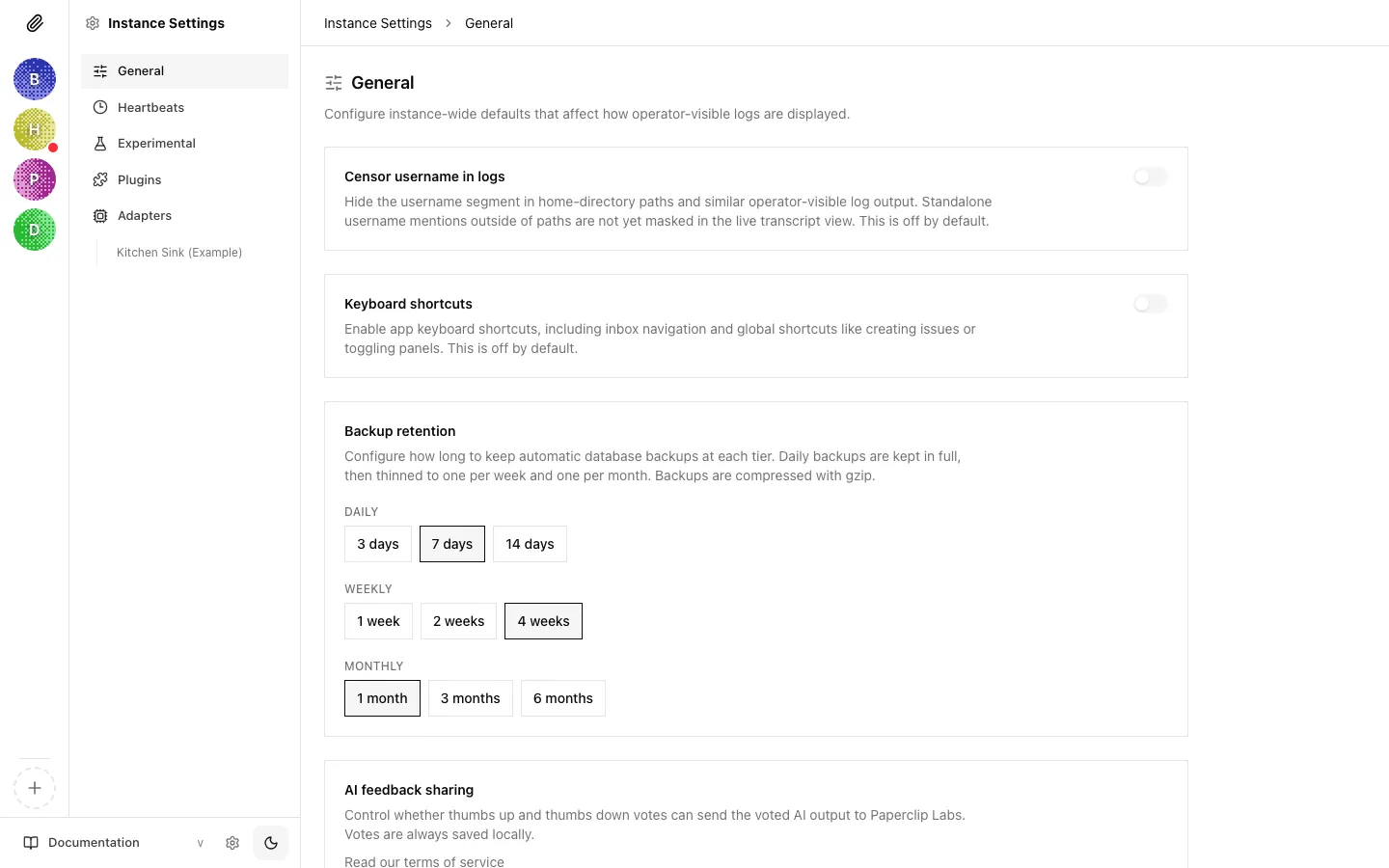
Open the Profile page from the account menu in the sidebar. It’s scoped to you: nobody else’s profile changes when you edit yours.
You get three things to work with:
- Avatar: click the round image (or the Upload photo button) to pick a new image from disk. It’s uploaded into Paperclip’s file storage under the currently selected company’s asset space. If no company is selected you can’t upload; the page will tell you to select one first. Once an image is set, a Remove button appears next to the upload control.
- Display name: the name shown in the sidebar account footer and as the author on any comments you post. It falls back to “Board” if left blank. The field is capped at 120 characters.
- Email: read-only. Your email is managed by the auth session (the login provider), not by this page. If you need to change it, update it wherever you signed in from.
Click Save profile to persist name or avatar changes. The button is disabled while the name is empty or a save is in flight.
Note: The avatar is stored as an asset under the selected company, but the profile itself is a user-level record. If you switch which company is selected in the sidebar later, your avatar keeps working. New uploads go to whichever company is active when you upload.
Keyboard shortcuts
Section titled “Keyboard shortcuts”Enables the app’s keyboard shortcuts: inbox navigation, creating issues, toggling panels, and so on. Off by default because they conflict with browser or screen-reader shortcuts for some users. Turn it on if you want faster navigation.
Sign out
Section titled “Sign out”A plain Sign out button at the bottom. It ends your session and sends you back to the login page.
Where to go next
Section titled “Where to go next”- Company Administration: managing members, invites, join requests, and company identity.
- Heartbeats and Routines: the full picture of timer vs. event-driven wakes, and how to configure individual agents.