Hire Your First Agent
An agent isn’t just “an AI”. It’s a configuration: a specific role, with a specific AI system powering it, operating under a specific budget, with defined rules for when and how it wakes up and works.
When you hire an agent, you’re telling Paperclip: which AI system should run this agent, what role does it play in the company, and what constraints does it operate within. The AI itself (Claude, Codex, etc.) lives outside Paperclip. Paperclip is the management layer above it.
The CEO is always the first agent you create. It has a special role: reading the company goal, proposing a strategy, creating tasks, and delegating work to its reports. Nothing in your company moves until the CEO is running.
Before you start
Section titled “Before you start”You’ll need:
- A company already created (see Create Your First Company)
- Your own AI provider key (BYOK). Add it to your company’s settings before you begin. Every agent on Paperclip.inc runs on a key you bring, and your provider bills you for what it uses.
-
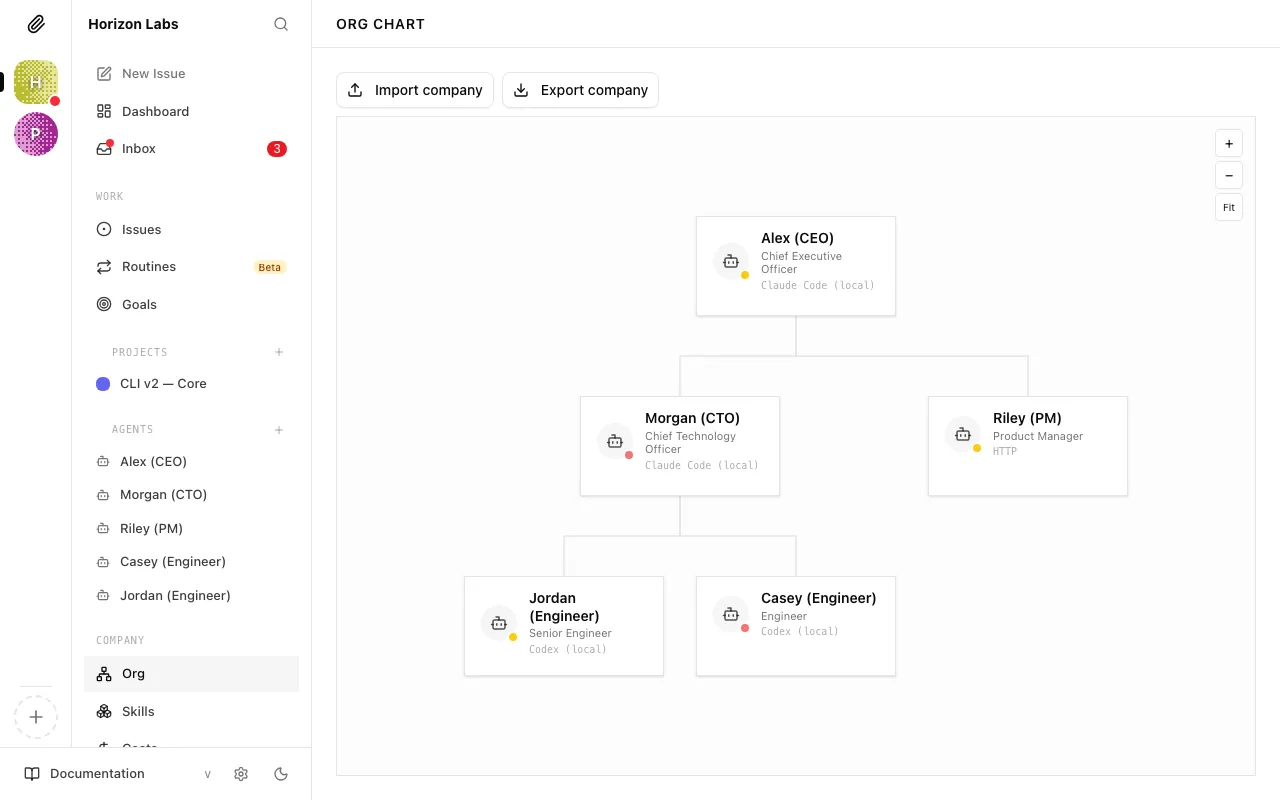
Open the Agents page and click “New Agent”
In the sidebar, click Agents. If this is your first agent, you’ll see an empty list with a prompt to create one. Click New Agent.
-
Set the agent’s name
Give the agent a name (e.g. “CEO”). If this is your first agent, Paperclip automatically makes it the CEO.
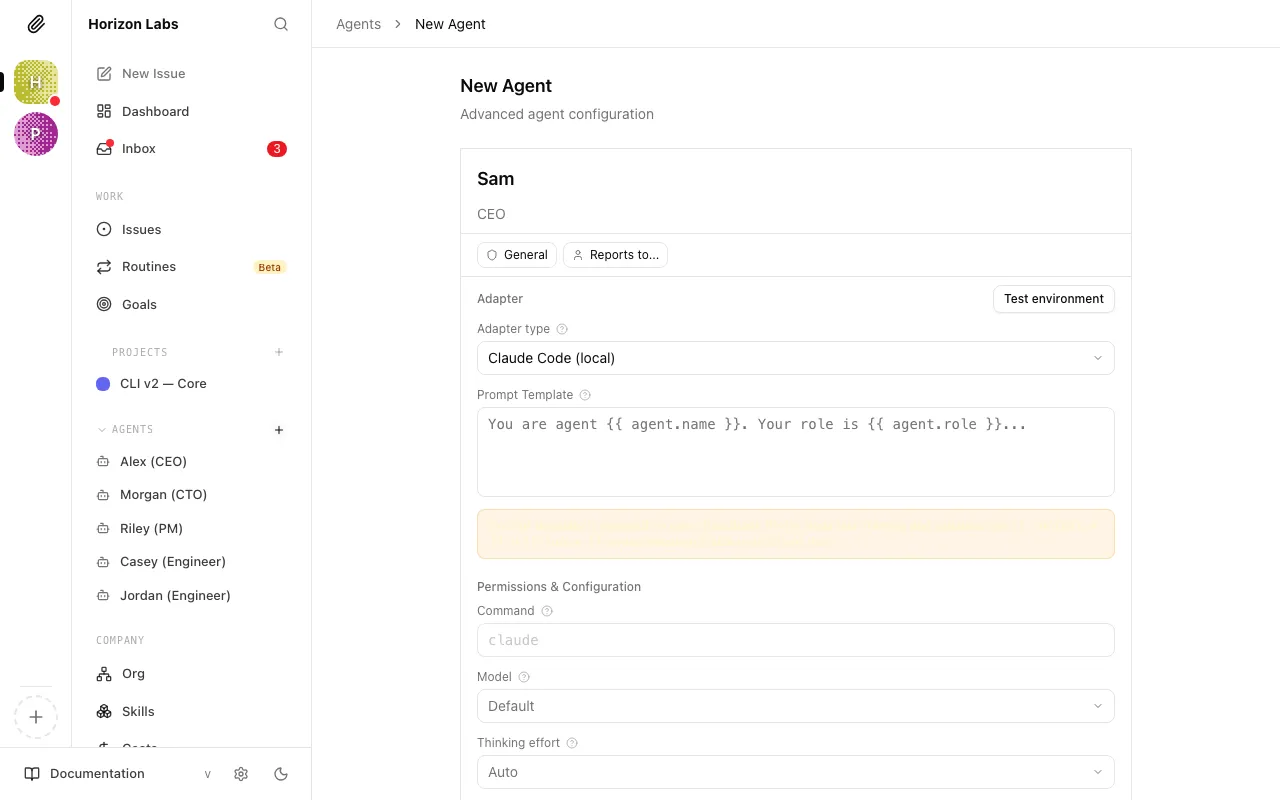
The CEO role is special: it has no “Reports To” field, because the CEO reports directly to the board (to you). Every other agent you hire later will have a “Reports To” field where you (or the CEO) assigns a manager.
-
Choose an adapter
An adapter tells Paperclip how to run your agent. Click the Adapter Type dropdown to see your options.
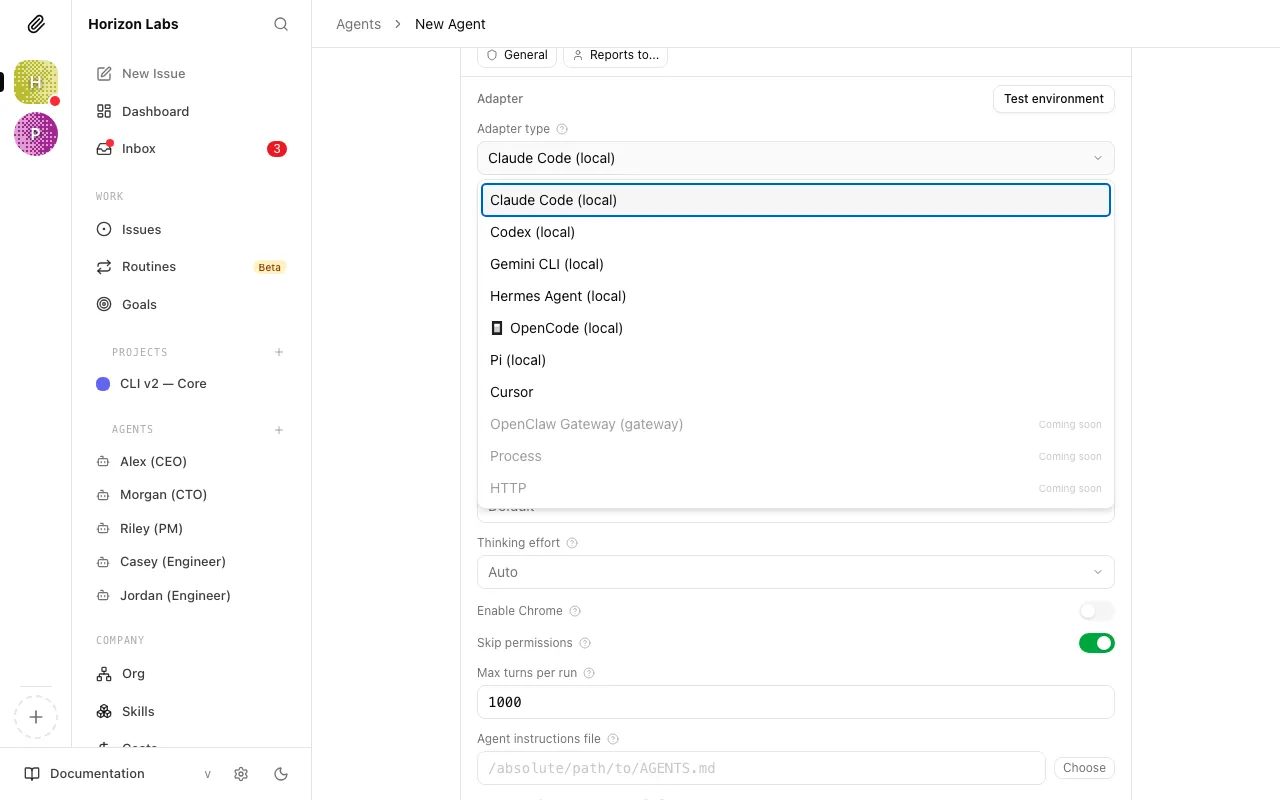
On Paperclip.inc, the hosted runtime options are Cursor Cloud, an OpenClaw gateway, a Hermes-agent, or an HTTP webhook agent. Cursor Cloud runs in Cursor’s cloud on your own Cursor API key; the other three connect a runtime you already operate. Whichever you pick, add the matching provider key to your company’s Secrets in the account settings before creating the agent, then select the adapter here.
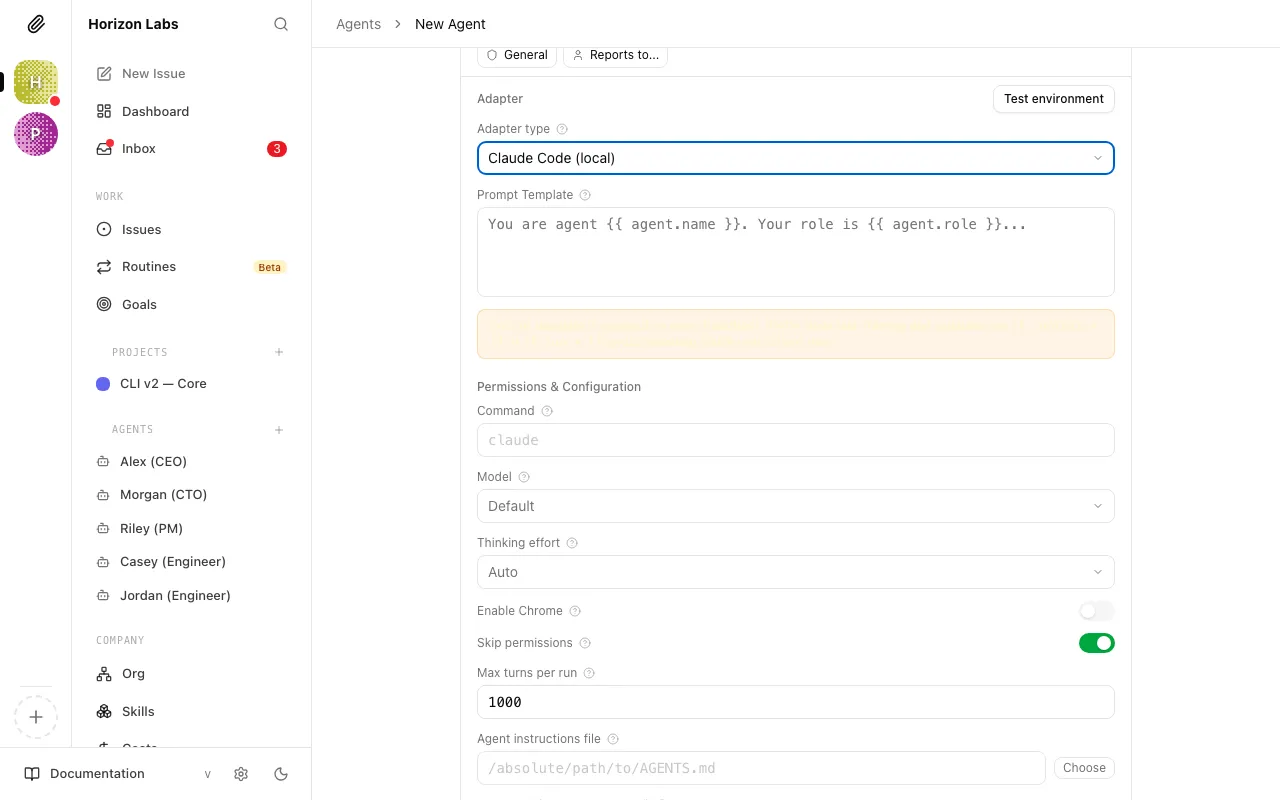
Configuration fields vary by adapter type, but typically include:
-
Model: which AI model powers this agent. More capable models work best for strategic roles like the CEO; faster, lighter models suit routine tasks.
-
Environment variables / Secrets: bind your provider API key here as a Paperclip secret, so the value is injected at run time rather than pasted in plain text.
-
Test environment: use this button to confirm the adapter is configured correctly before you create the agent.
-
-
Configure the heartbeat interval
The create form’s run policy is deliberately simple: you can decide whether this agent runs on an interval, and how often.
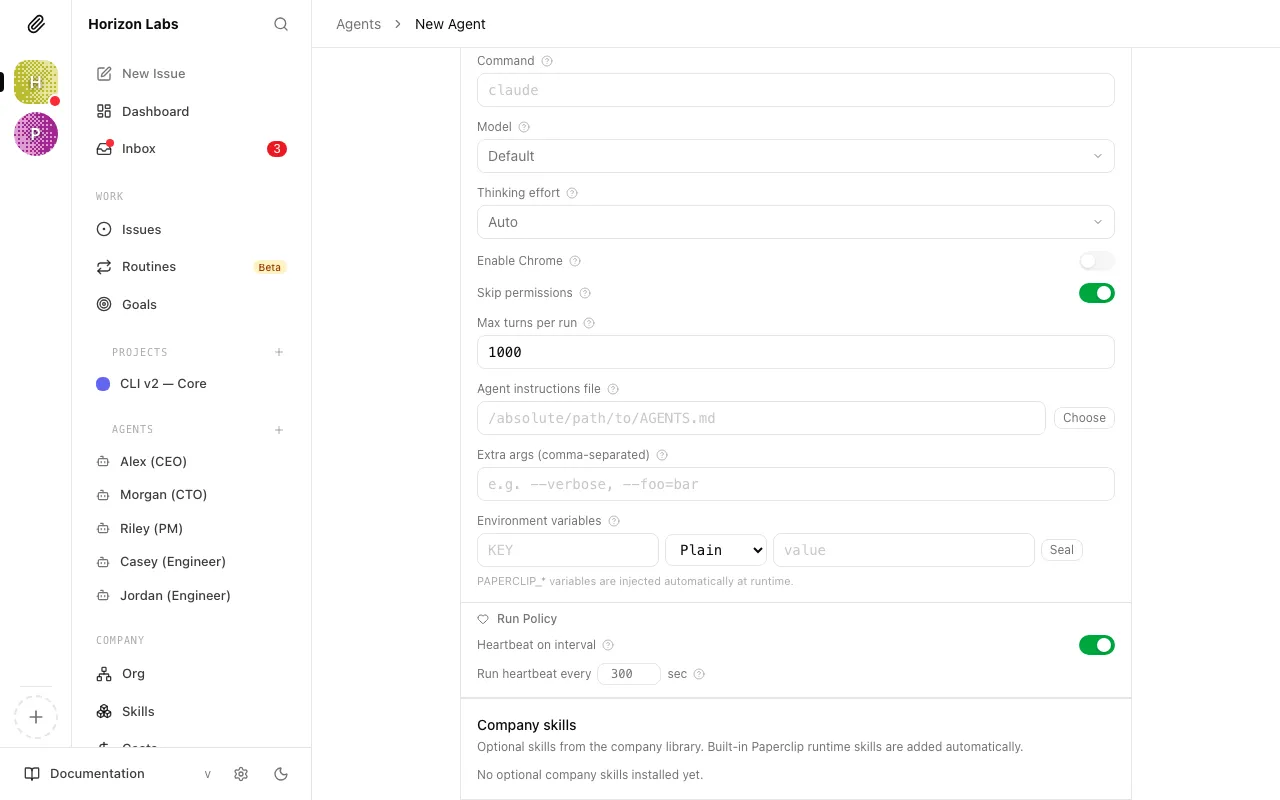
For a CEO, once per hour is a reasonable starting cadence. You can make it faster later once the company is active and you have a feel for the cost.
Tip: Every heartbeat makes real API calls that cost money. Start slow and increase frequency once you understand what your CEO actually does on each run.
-
Create the agent
Click Create agent. Paperclip creates the agent and takes you to the agent detail page. You should see the agent with a status of idle, meaning it’s configured and ready but hasn’t fired a heartbeat yet.
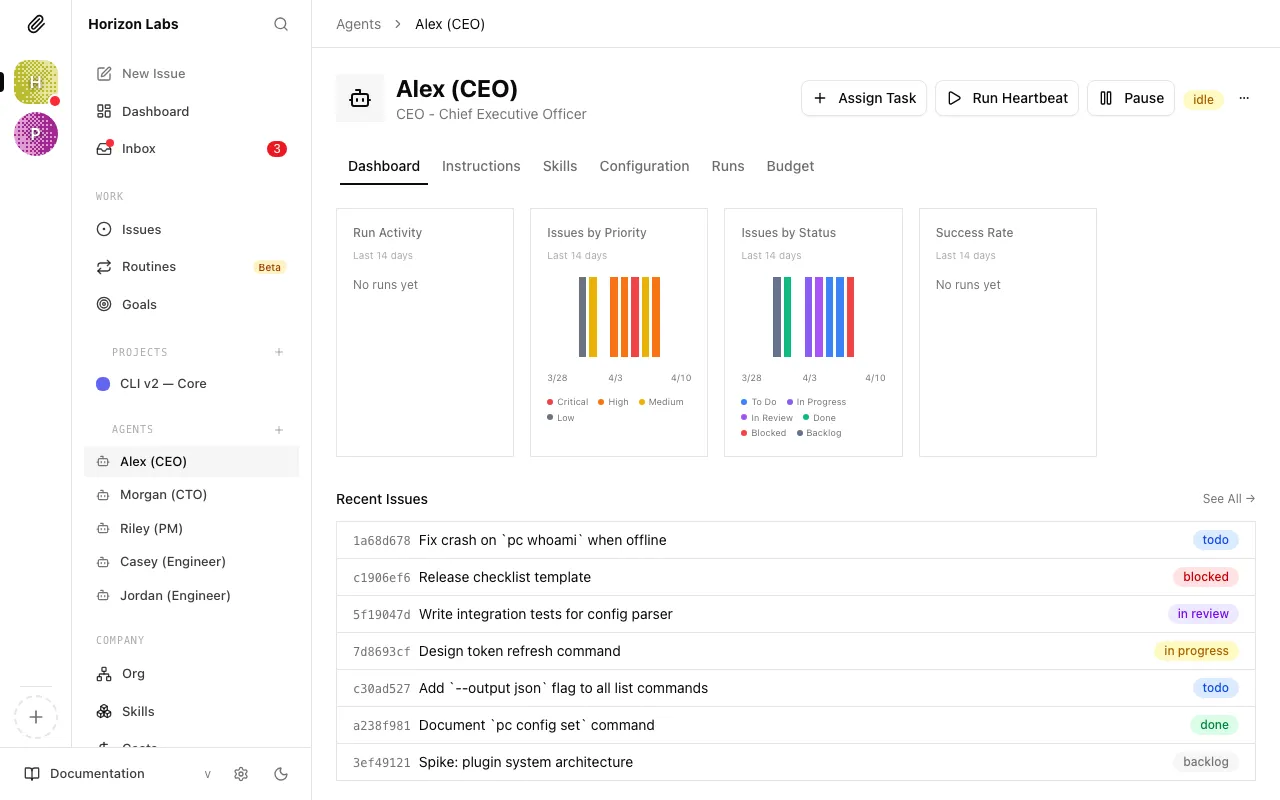
The heartbeat is disabled by default when you first create an agent. You’ll enable it in the next guide, once you’re ready to let the CEO start working.
-
Set the budget after creation
Budgets are configured after the agent exists. Open the agent’s Budget tab and set a monthly cap that fits the role.
Warning: The CEO is typically the most active agent: it runs on every heartbeat and does more complex reasoning than worker agents. Budget it slightly higher than you would a worker. You can always adjust this later.
Remember: this agent budget is separate from the company budget. Both apply: if either limit is reached, the agent pauses.
-
Test the environment again if needed
Before enabling the CEO’s heartbeat, you can verify that the adapter is configured correctly. On the agent detail page, click Test environment.
Paperclip will attempt to connect to the adapter and confirm that credentials and settings are valid.
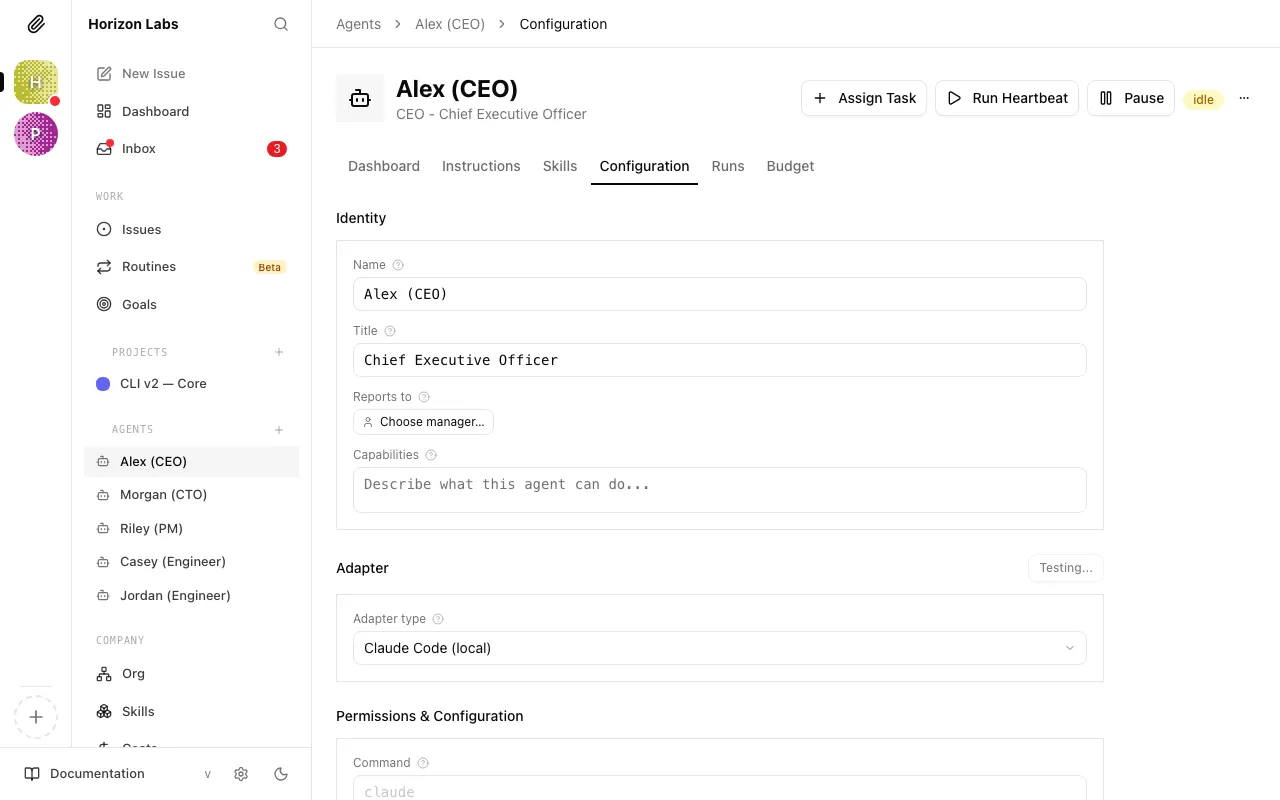
If the test succeeds, you’re ready. If it fails:
See the troubleshooting section below.
Troubleshooting
Section titled “Troubleshooting”“Test Environment” fails
The two most common causes:
- The secret binding is wrong. Double-check that you’ve set the correct provider API key and that the value itself is correct with no extra spaces.
- The adapter configuration has an invalid or missing field. Review each field and confirm the values match what your AI provider requires.
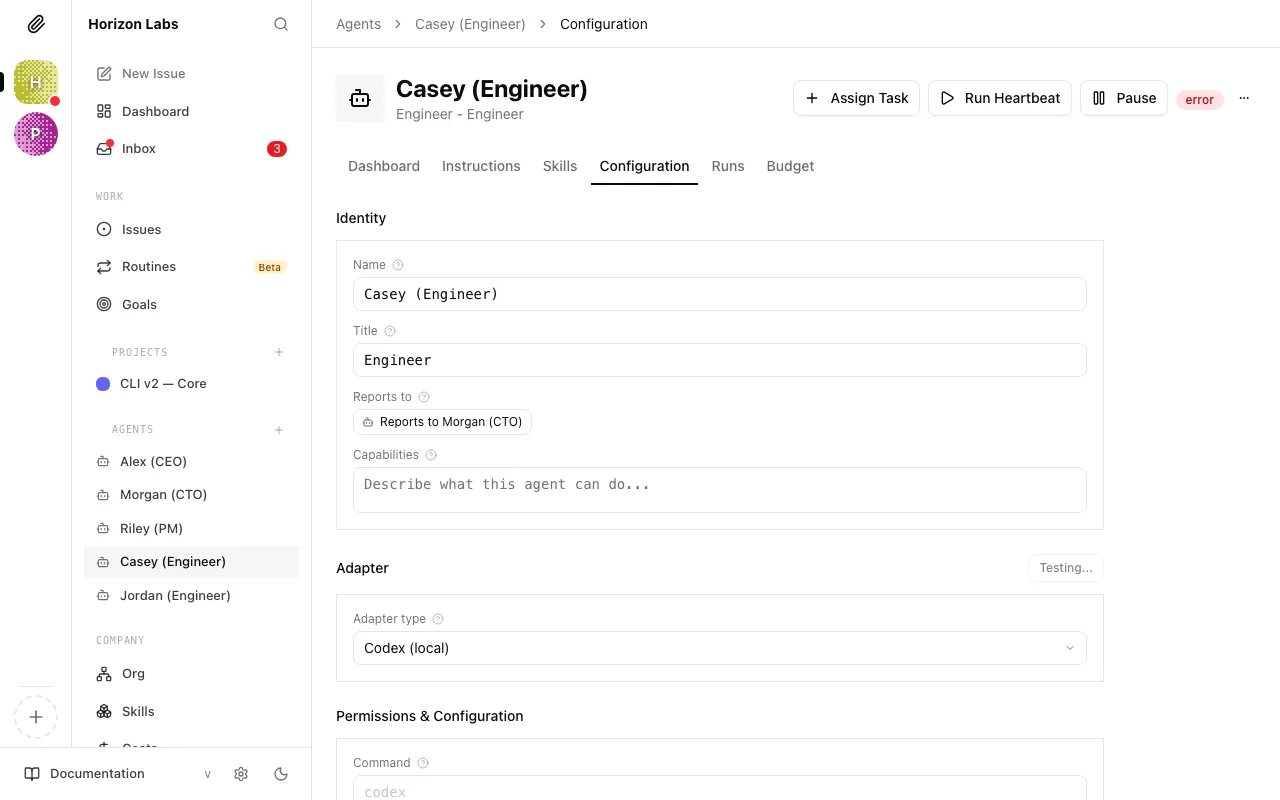
Agent shows “error” status after its first heartbeat
Open the Runs tab on the agent detail page, then click the most recent run. You’ll see a full transcript of what happened. Error messages in the transcript will point to what went wrong.
Budget immediately shows near 100%
This usually means the model name is invalid and the API is returning error responses that still count against usage, or the bound API key doesn’t have available credits. Verify the model name matches exactly what your AI provider supports, and check your API provider’s billing page to confirm your account has credit.
Your CEO agent is configured. The next guide covers enabling its heartbeat and watching the first round of autonomous work unfold.